

A restaurant QR code feedback survey lets a guest scan a code on the table or receipt and tell you how the visit went in about two minutes, without downloading an app or creating an account. Done well, it tells you which location the guest visited, what worked, what didn’t, and whether they want a reply.
This guide walks through one complete example: a five-question survey for Sunday Table, an example restaurant with locations in SoHo and Brooklyn. You’ll get the field map, the QR setup for each location, the settings that matter before you print anything, what a manager sees afterwards, and a checklist for following up.
Feedback first, prize optional
This survey has no prize. If you add a prize draw later, make every completed response eligible whatever the rating, publish official rules, and never tie a reward to a positive or public review.
What You’ll Build
It works like a short guest feedback form. Guests scan a QR code, answer five questions and, if they want a reply, leave an email address. Marketing permission is a separate checkbox, unchecked by default. Managers review the answers in Revup and reply personally to guests who asked.
The Sunday Table feedback loop
Scan
A guest scans the QR code on a SoHo table tent or a Brooklyn receipt.
Answer
Five questions on their phone: location, overall rating, what stood out, what could be better, and whether they would return.
Choose
They can leave an email for a reply and, separately, opt in to news and offers. Both are optional.
Review
A manager reads the charts and comments, downloads responses by location, and replies by hand where a guest asked.
Before You Start
- A Revup account. The free trial is enough to build and test this survey.
- Your locations and placements. List each restaurant and where the code will appear: table tents, receipts, menus or takeout bags.
- An owner for replies. Decide who reads responses, how often, and who replies when a guest leaves an email.
- Your privacy and consent wording. Have your privacy policy URL ready and decide what “news and offers” means for your restaurant.
Step 1: Create the Survey
In the dashboard, select Create Promotion, choose Surveys, then Start from scratch. A new survey starts with one required text question, “What could we do better?”, plus CAPTCHA and a Submit button. You won’t need a prize.
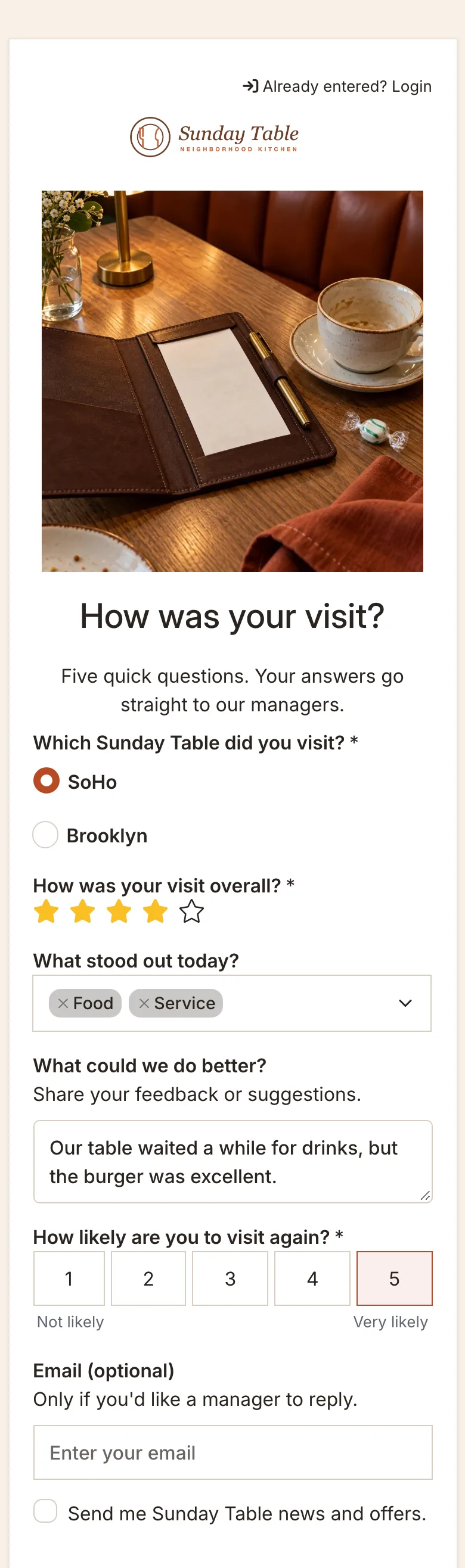
Give the form a title guests understand at a glance. Sunday Table uses “How was your visit?” with the description “Five quick questions. Your answers go straight to our managers.” It also renames the button to Send feedback.
Step 2: Add Five Survey Questions
Five questions keep the survey short enough to finish before the check arrives. Each one maps to a decision a manager can make. Sunday Table keeps the starting text question but makes it optional and moves it to fourth place.
| # | Question | Field type | Required? | Why ask it |
|---|---|---|---|---|
| 1 | Which Sunday Table did you visit? | Multiple Choice: SoHo, Brooklyn | Yes | Puts a location on every response, even if a guest scans a receipt at home |
| 2 | How was your visit overall? | Star Rating, maximum 5 | Yes | One comparable score per visit |
| 3 | What stood out today? | Multiselect: Food, Service, Speed, Atmosphere, Value | No | Shows which parts of the visit guests notice |
| 4 | What could we do better? | Text Area | No | The comment a manager can act on |
| 5 | How likely are you to visit again? | Opinion Scale 1–5, labeled Not likely and Very likely | Yes | Separates a fine visit from a guest you may lose |
After the questions, Sunday Table adds two optional fields:
- Email, labeled “Email (optional)” with the help text “Only if you’d like a manager to reply.”
- Email Consent, labeled “Send me Sunday Table news and offers.”, left unchecked by default.
Keep CAPTCHA at the end of the form. Guides for each field are in the Help Center: questions and answer choices and ratings and scales.
Opinion Scale isn’t NPS
Question 5 uses a 1–5 Opinion Scale, which reports an average. If you want a Net Promoter Score, use the dedicated NPS field instead; only that field calculates promoters, passives and detractors.
Step 3: Decide What “Anonymous” Means for Your Survey
Revup surveys are anonymous by default. Adding an Email field makes the survey identified, but a guest who leaves an optional email blank still sends an anonymous response. No contact record is created for them. A guest who enters an email becomes a contact you can reply to.
Three details are worth planning for:
- Consent must stay optional. Open the Email Consent field and confirm it isn’t required. A required consent box would stop guests who only want to leave feedback. See how email consent controls integration syncing.
- Returning emails may need a code. When a guest uses an email address that has already responded, Revup asks for a verification code before accepting another response. Regulars who leave the same email for a reply on a later visit should expect a code. Guests who leave the email blank aren’t asked.
- Anonymous isn’t a guarantee about the comment. A guest can still type a name or phone number into “What could we do better?”. Treat open comments as potentially personal information.
Step 4: Create a QR Code for Each Placement
Open Share → Tracking links, enter a campaign name and select Add. Revup creates a short link with its own QR code download. Sunday Table uses two:
| Tracking link name | Where it goes | Who sees it |
|---|---|---|
| SoHo table tent | Folded card on every SoHo table | Dine-in guests during the meal |
| Brooklyn receipt | Printed on the Brooklyn receipt footer | Guests settling the check, including takeout |
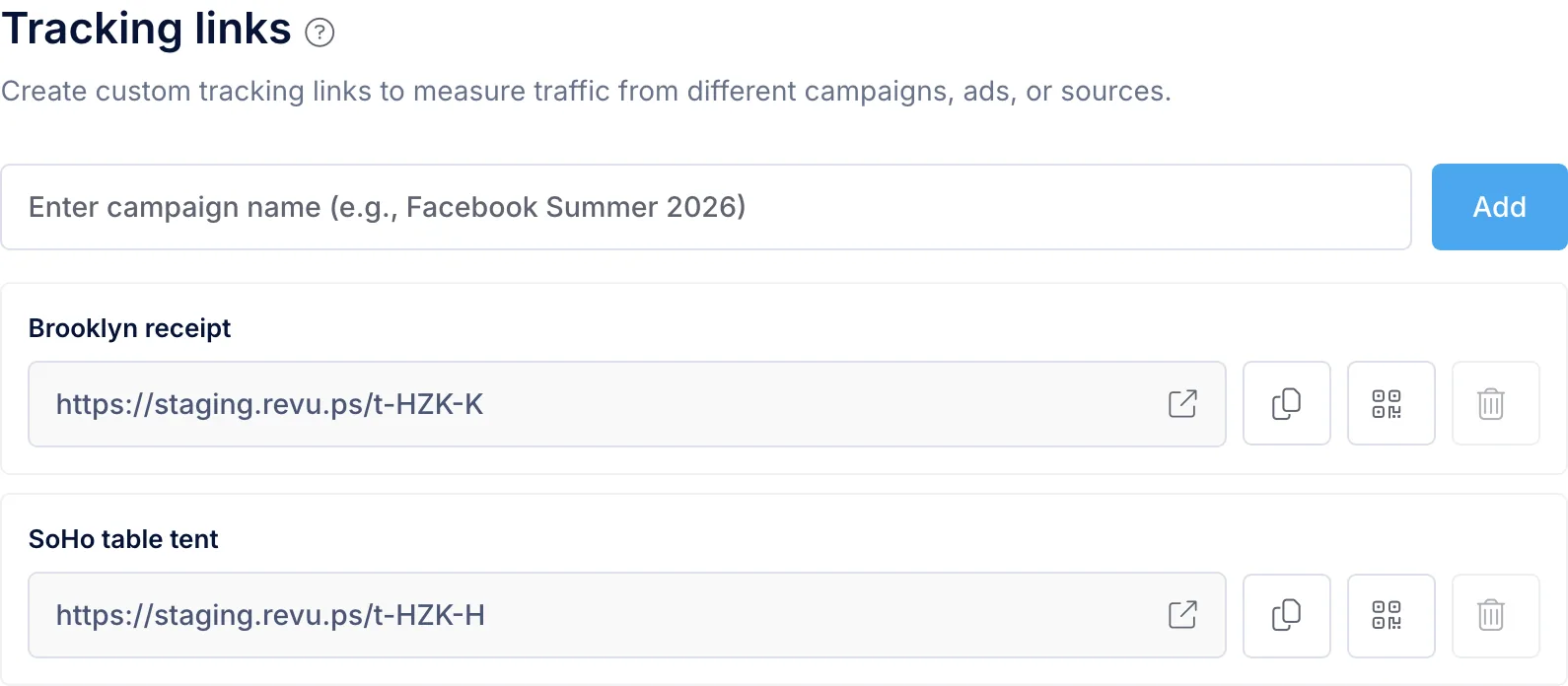
Each tracking link’s visits and participants appear under Reporting → Analytics → Campaign Tracking. The survey charts themselves combine all responses, which is why question 1 asks for the location directly. That answer stays attached to each response. The tracking links guide explains removal rules and what the counts measure.
Step 5: Check Security Before You Print
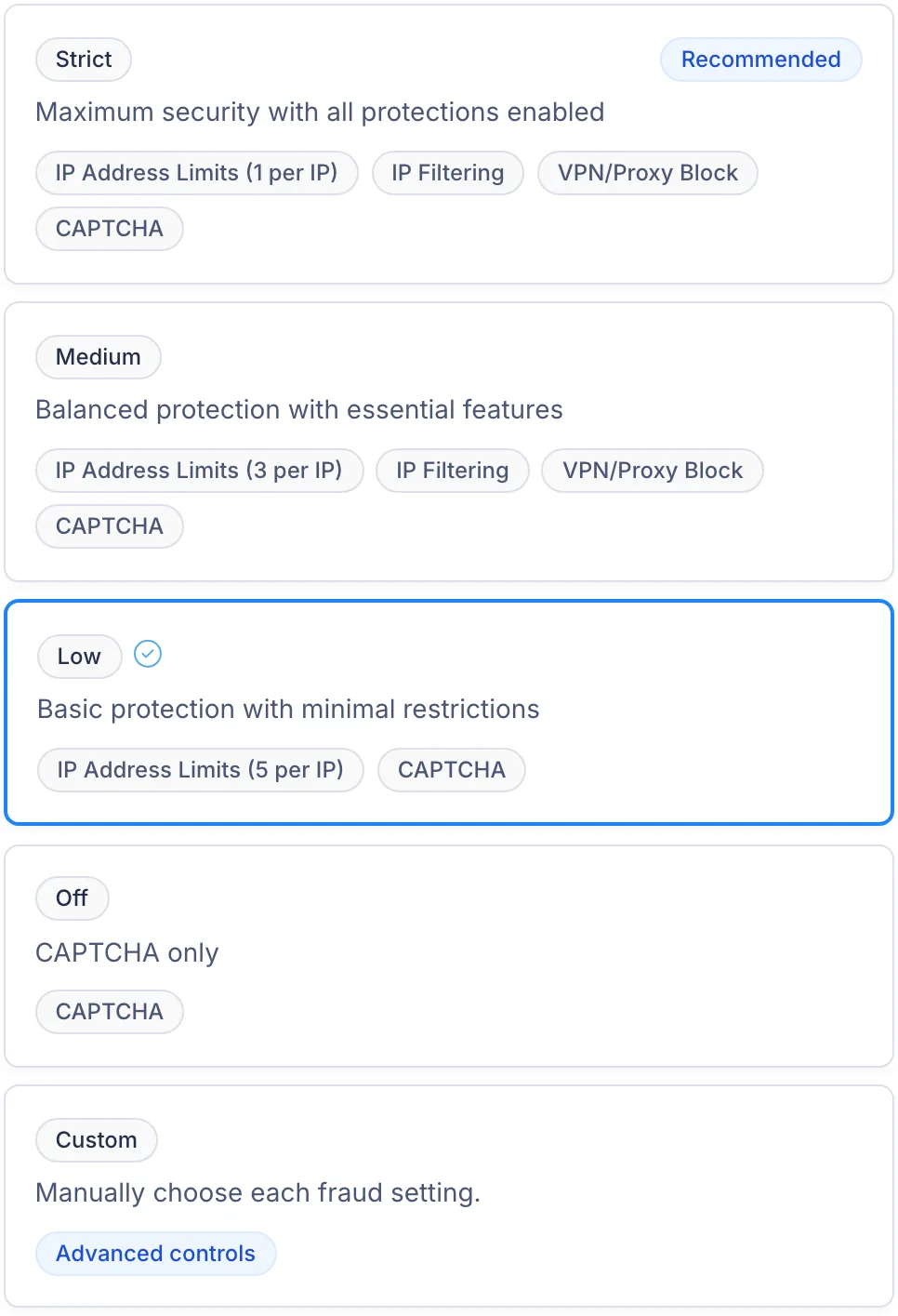
New promotions start on the Strict security level, which allows one entry per IP address. Guests on the same restaurant Wi-Fi, or on a mobile network that shares IP addresses, can look like one person. Responses over the limit are marked invalid, so check Participants for invalid responses after testing.
For a survey without a prize, open Security and choose a level that fits a shared network. Medium allows three per IP address and keeps VPN and proxy blocking, which may suit a smaller restaurant. Sunday Table uses Low, which allows five per IP address and turns VPN and proxy blocking off, and keeps CAPTCHA on the form. A busy dining room may need Custom with a higher limit. If you add a prize draw, revisit this setting and your official rules together. See security levels.
Step 6: Write the Sign Copy
The sign only has to say what the guest gets, how long it takes and what you won’t ask for. Sunday Table’s copy:
- Table tent: “How was your visit? Five quick questions, about two minutes. Scan to tell our managers. No name needed.”
- Receipt footer: “Tell us how we did: scan the code or visit [short link]. Your answers go straight to our managers.”
Use the QR code for the placement you’re printing so its traffic lands in the right tracking link. Don’t promise a reply to every guest unless someone will send one, and don’t offer anything in exchange for a review on another site.
Review Your Results
Open your survey’s Reporting → Responses tab. The top row shows how many responses were started and completed, how many guests left an email, and your completion rate. Below that, every question gets its own card. With the five questions above, you’ll see the split between your locations, your average star rating, which parts of the visit guests picked most often, their written comments with a search box, and how likely they are to return.
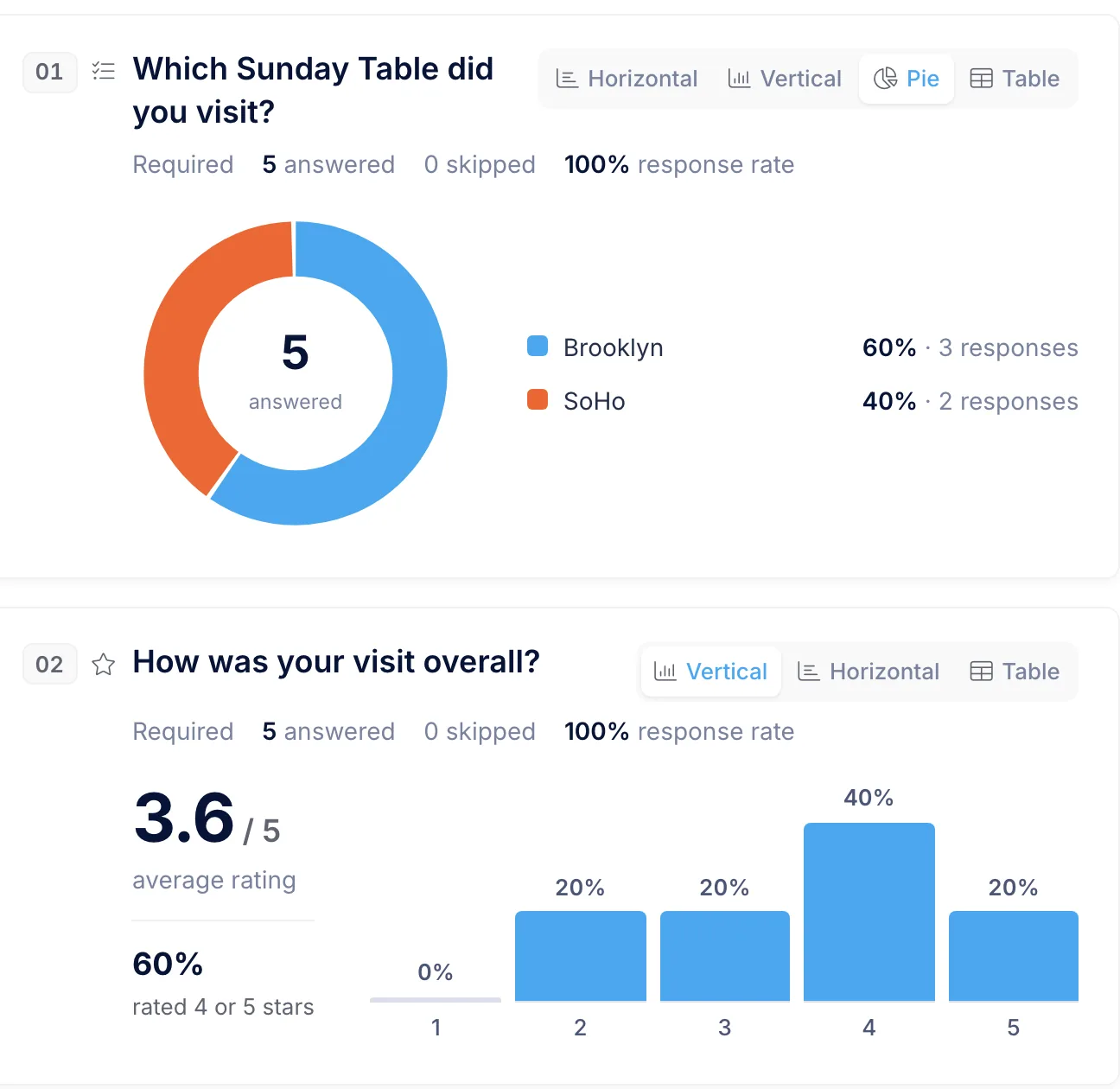
To compare your locations side by side, open the download menu and choose Download Responses. You’ll get one row per guest, including their answer to your location question, so you can filter by location in a spreadsheet. To see how many people scanned each table tent or receipt, open Analytics → Campaign Tracking.
How to Handle a Reply
Revup doesn’t open service tickets or send automatic apologies. A person decides what happens next. A simple routine for a manager:
Manager follow-up checklist
- Review new responses at a set time each day, starting with the lowest ratings
- Search the comments for repeated words such as cold, wait or noise
- For a low rating with an email address, open the response in Participants and reply personally within one business day
- Reply only about the visit; do not add the guest to marketing unless they checked news and offers
- Share themes with the kitchen and floor teams rather than individual guest details
- Record the outcome in the tool your team already uses for guest issues
- Download responses weekly and compare locations
A reply might read: “Thanks for telling us about the wait on Friday. I’m the general manager at Sunday Table Brooklyn, and I’ve shared it with our kitchen lead. If you’d like to talk it through, reply to this email.” Keep it personal, and don’t ask the guest to change a rating or post a review.
Optional: Follow Up With Guests Who Opted In
Guests who checked “Send me Sunday Table news and offers” gave you permission to market to them. If you connect an email platform, Revup sends mapped email data only for guests who checked that box. Guests who left it unchecked aren’t sent to that platform.
From there, a sensible next step is a promotion for those guests, such as a giveaway for a new seasonal menu. Our restaurant sweepstakes and contest ideas cover broader options, and Revup for restaurants shows how feedback and giveaways fit together.
What This Setup Doesn’t Do
- No POS connection. Revup doesn’t connect to your POS or confirm that a guest actually dined. The location answer is self-reported.
- No automatic recovery. Low ratings don’t create tickets or send messages. Managers follow up personally.
- No review requests. Revup doesn’t ask guests for public reviews or post them anywhere.
- No location filter in the report. Compare locations with the responses download or with a separate survey per location.
Launch Checklist
Before the first table tent goes out
- Five questions added, with location, rating and visit-again required
- Email optional, with help text explaining it is only for replies
- Email Consent optional and unchecked by default
- CAPTCHA on the form
- Security level checked for shared Wi-Fi and mobile networks
- One tracking link and QR code per placement
- Sign copy says how long the survey takes and that no name is needed
- Each printed QR code scanned once
- A named manager owns daily review and replies
Ready to build it? Start a free trial and create a survey, or see how surveys work on the Surveys page.