

Product sampling only pays off if you know who asked for a sample, what they asked for, and what they thought once they tried it. Most sampling campaigns lose that thread somewhere between the sign-up and the shipping box.
This guide walks through one complete example: Daybreak, an example sparkling water brand, offers free samples of three flavors to US shoppers. People request a sample with a short form, the team reviews the requests and ships them, and two weeks later each person is invited to a five-question feedback survey. Their answers land on the same profile as their original request.
Ask for honest feedback, not praise
If you reward people for completing the survey, make every completed response eligible whatever the rating. Never require or reward a positive or public review.
What You’ll Build
The Daybreak sampling campaign
Request
Shoppers request a sample, pick a flavor and enter a US shipping address.
Review
Your team checks requests against supply and shipping rules before anything ships.
Ship
You export approved requests for your team or fulfillment partner.
Ask
Fourteen days after each request, Revup emails a link to a five-question survey.
Learn
Feedback links to each person’s request, so you can see who liked which flavor.
Before You Start
Decide these first
- How many samples you have, and of which products or flavors
- Where you can ship, and to whom
- Who packs and ships: your team or a fulfillment partner
- The dates requests open and close
- Who sends the feedback invitation: Revup, after you set up email sending, or your own email platform
- That your privacy policy covers sharing shipping details with whoever ships the samples
Step 1: Create the Sample Request Form
In the dashboard, select Create Promotion, choose Form, then Start from scratch. Give it a title that says what people get, such as “Try Daybreak first,” and say in the description that samples are limited and where you ship.
In Settings, set the dates requests open and close. A form doesn’t stop after a set number of requests, so match the window to your supply. If requests run ahead of supply, move the end date forward to close it early.
On the Post-Entry tab, tell people what happens next: when to expect their sample, and that you’ll ask what they thought. See creating a form.
Step 2: Ask Only What You Need to Ship and Segment
Every extra field costs requests. Collect what you need to ship the right product, plus a couple of answers you’ll use later:
| Field | Type | Required? | Why |
|---|---|---|---|
| First and last name, email | Name, Email | Yes | Who asked, and where the feedback invitation goes |
| Shipping address | Address | Yes | Adds street, line 2, city, state, postal code and country |
| Which flavor would you like to try? | Multiple Choice | Yes | Decides what you ship |
| How often do you drink sparkling water? | Multiple Choice | No | Separates regular buyers from occasional ones |
| Where do you usually shop for drinks? | Dropdown | No | Shows which retailers matter to your sample audience |
| Send me Daybreak news and offers. | Email Consent | No | Marketing permission, unchecked by default |
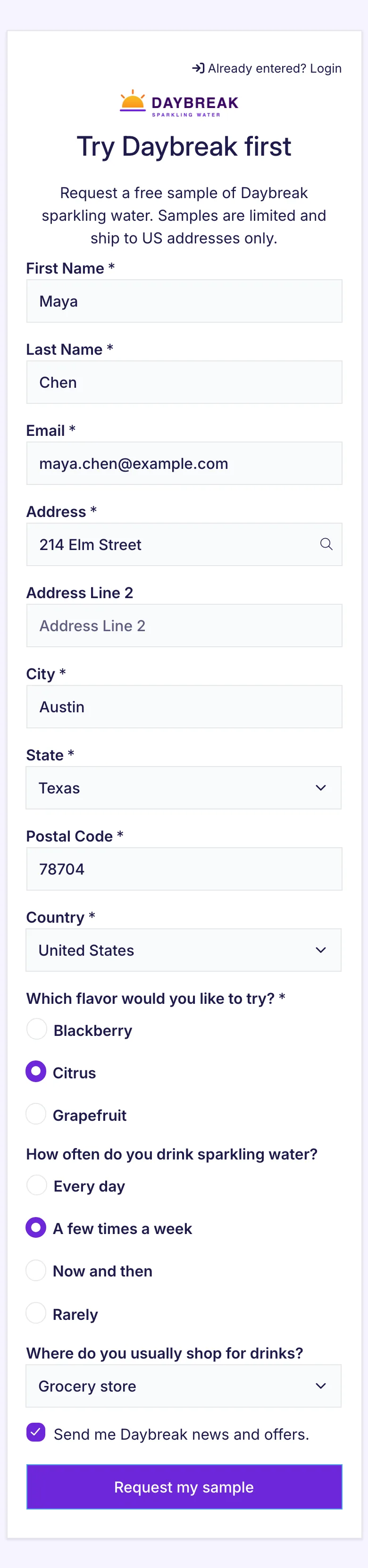
Each email address can request once. If someone tries again with the same email, Revup asks them to verify it and shows their existing request instead of creating a second one. See questions and answer choices and email consent.
Step 3: Give Each Channel Its Own Link
Open Share → Tracking links and add one link per channel. Daybreak uses Instagram and In-store QR. Every request records its channel, and it appears in the export’s Campaign Name column. See tracking links.
Step 4: Review Requests Before You Ship
Open Participants to see every request, and open one to see the address and answers. When a request can’t be filled, such as an address outside your shipping area, open the status menu on that row and choose Invalidate. Excluded requests drop out of the default view and the export.
Invalidating is a firm exclusion, not a “maybe” flag. It removes the person from your contacts, stops syncing them to connected platforms, and skips them in Flows. Form requests don’t have approve, reject or tag statuses, so keep any other allocation notes in your shipping sheet. See managing participants.
To stop most out-of-area requests before they arrive, turn on Geofencing under Security and include only the countries you ship to. It checks where the visitor is, not the address they type, so keep reviewing addresses. See geofencing.
Sample allocation checklist
- Address is inside your shipping area
- Requested product or flavor is in stock
- Request looks genuine, not a bot or obvious fake
- Total approved requests fit your sample supply
- Requests you won’t fill are invalidated before you export
Step 5: Hand Off to Whoever Ships
Select Export on the Participants list. The CSV has one row per request, with each answer in its own column, including the full address, the flavor and the Campaign Name. It follows your current filter, so the default export leaves out invalidated requests. Before you send it on, delete columns your fulfillment team doesn’t need, such as IP and Login Link. See exporting participants.
Prefer each request sent straight to your fulfillment system? Use Zapier or a webhook. Requests are sent as they come in, before your review, so your partner needs to apply your exclusions.
Revup doesn’t know what shipped, so track that in your shipping sheet. Keep each stage as its own count:
| Request | Flavor | Channel | Status in Revup | Shipped (your sheet) | Feedback |
|---|---|---|---|---|---|
| Maya C. | Citrus | Valid | Yes | Responded | |
| Jordan R. | Grapefruit | In-store QR | Valid | Yes | Responded |
| Priya P. | Blackberry | Valid | Yes | Responded | |
| Sam O. | Citrus | In-store QR | Valid | Yes | Responded |
| Alex K. | Grapefruit | Valid | Yes | No reply yet | |
| Lena F. | Blackberry | Invalid (outside US) | No | — |
In this example, 6 people requested, 5 were approved and shipped, and 4 responded.
Step 6: Build the Feedback Survey
Create a second promotion: Create Promotion → Surveys → Start from scratch. Surveys are anonymous by default. Add a required Email field so each response links to the person’s request, and say in the description which email to use.
Keep it to five questions:
| Question | Type | What it tells you |
|---|---|---|
| Which flavor did you try? | Multiple Choice | Which product the answers are about |
| How much did you enjoy it? | Star Rating | A quick read on each flavor |
| How likely are you to recommend Daybreak to a friend? | Net Promoter Score | Whether the sample creates fans |
| Where would you look for Daybreak? | Multiple Choice | Where to stock or advertise |
| What would you change? | Text Area | What to fix before launch |
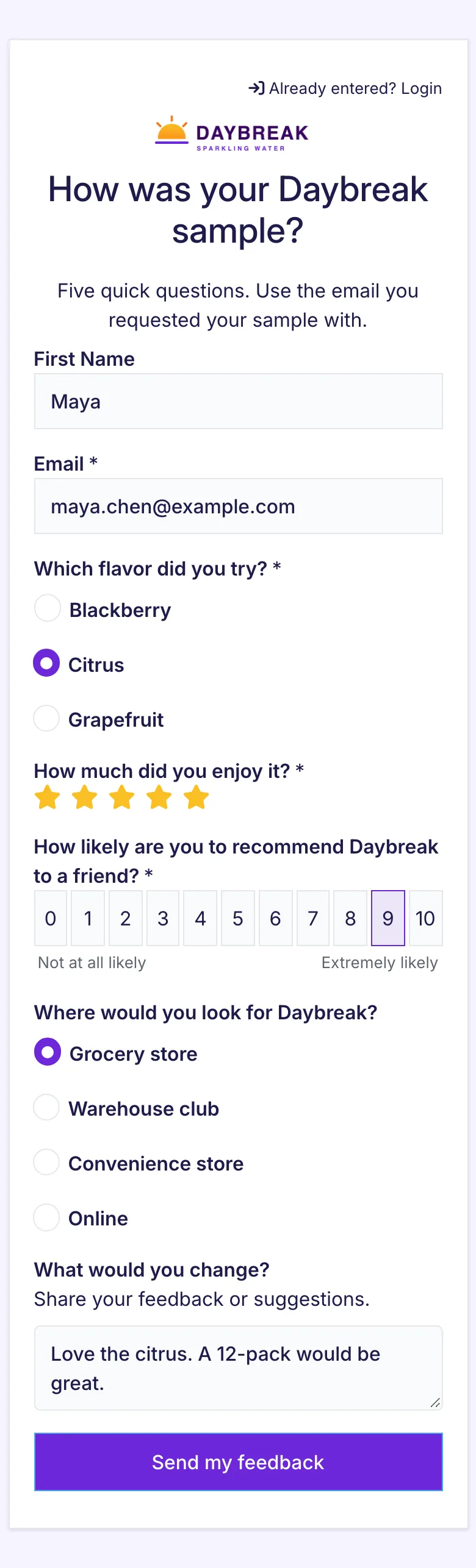
See ratings and rankings.
Step 7: Send the Survey After the Sample Arrives
Go to Flows, select Create Flow → Start from Scratch and choose the Form Submitted trigger. Add a Delay step that waits long enough for the sample to arrive and be tried. Daybreak waits 14 days. Then add an Action step, Send Message, with the survey link, and connect the flow to your request form.
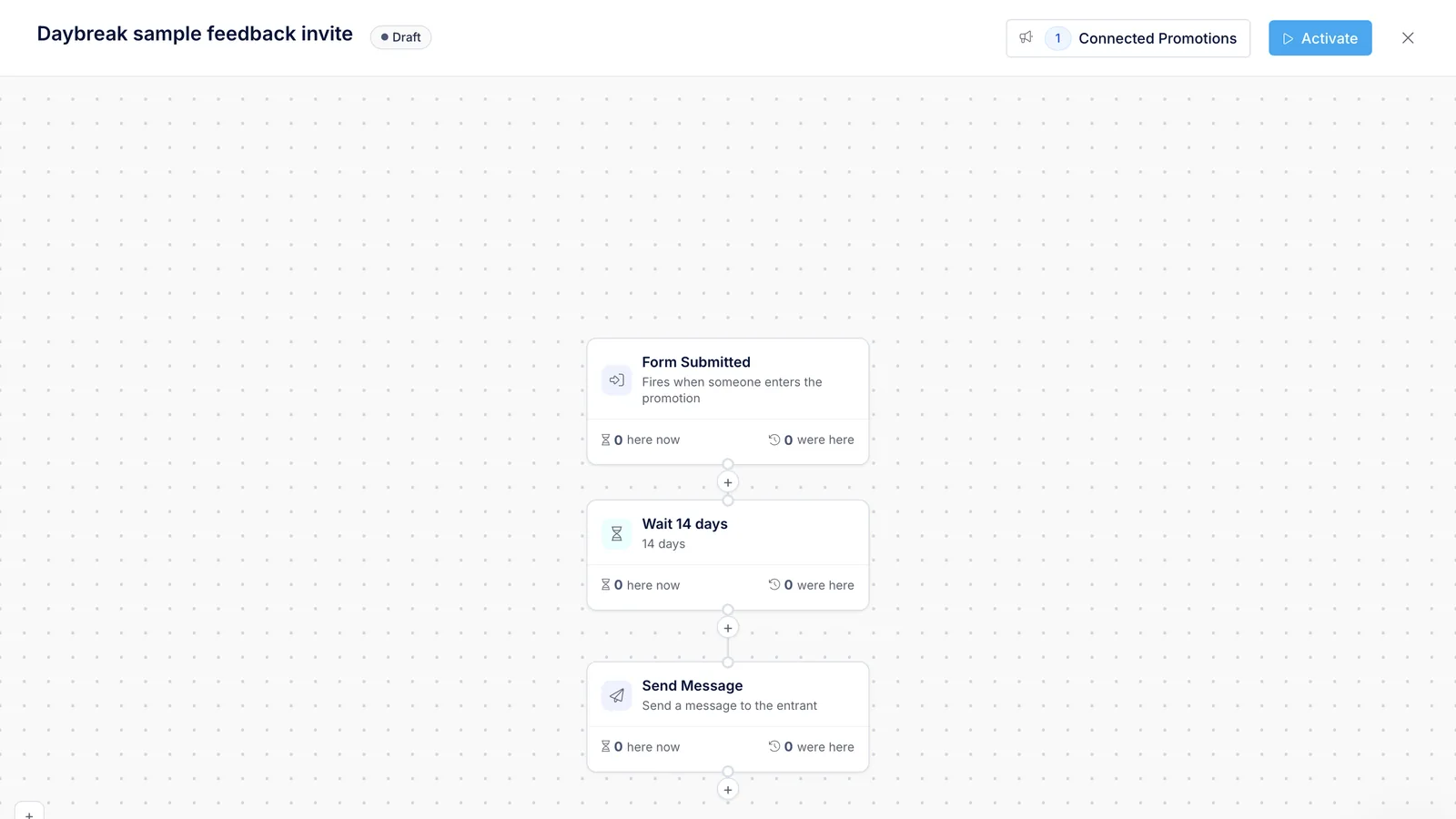
Flows skip anyone you invalidated, so excluded requests aren’t invited. Set up email sending first: a Revup-managed address works without any DNS changes, or you can connect your own domain. See Flows and email sending.
The flow invites every valid request. If you shipped to only some of them, send the invitation from your email platform to the people you shipped to instead.
Step 8: Read the Feedback
Open the survey’s Reporting tab for a chart of each question, the average rating and the Net Promoter Score.
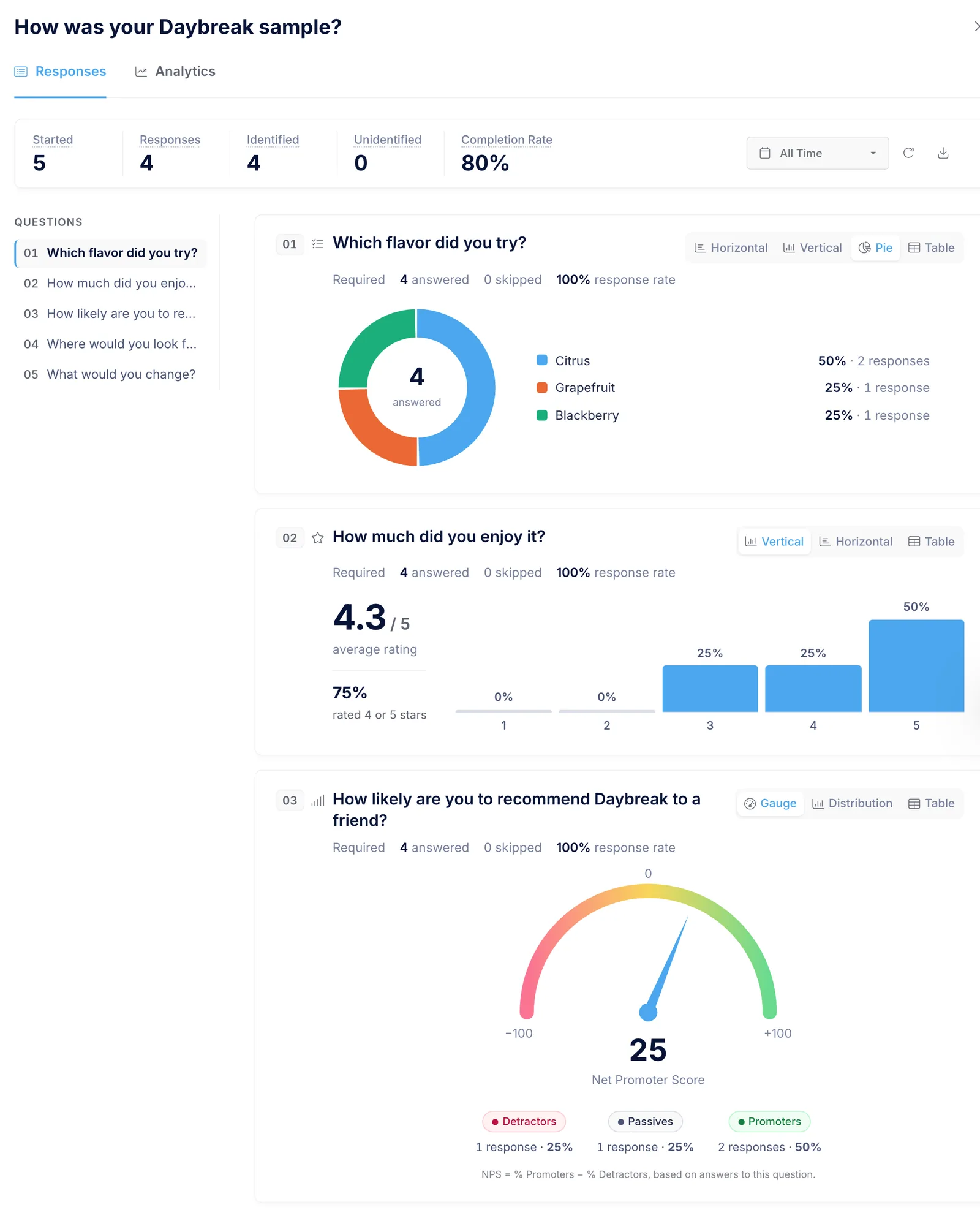
Reporting filters by date range. To compare answers by flavor or channel, export the responses and filter them in a spreadsheet.
Because both forms ask for an email, each person’s profile lists the request and the feedback together, along with their answers to both:
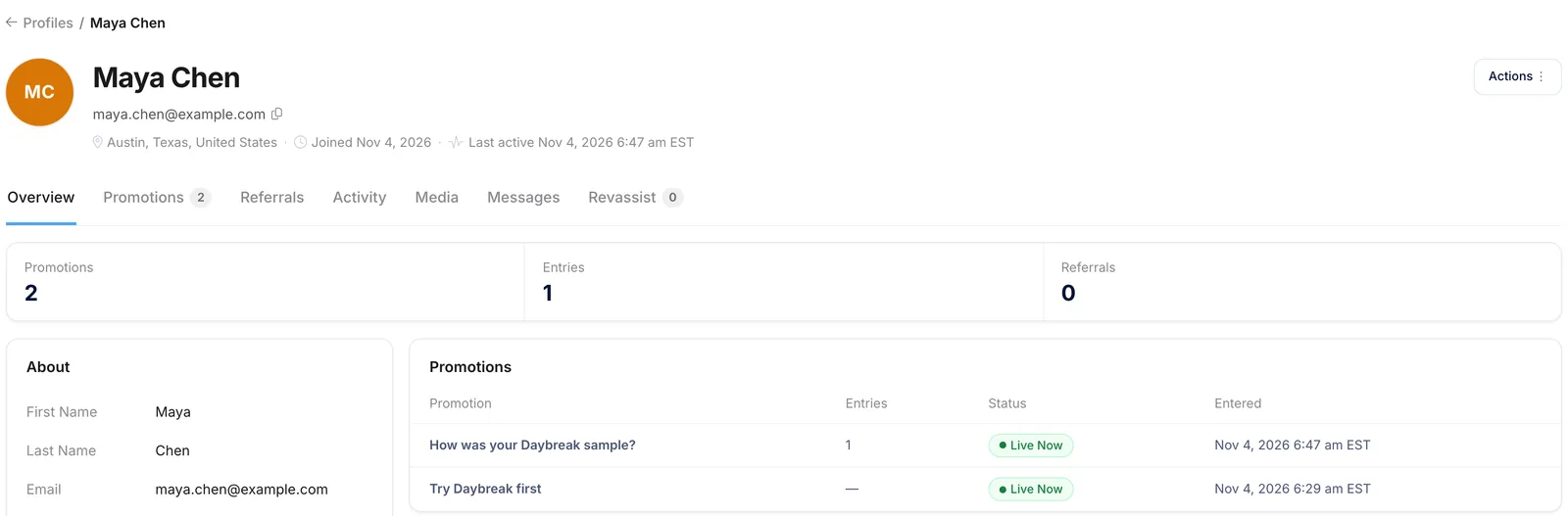
That makes the next campaign easier to target. You can invite people who loved Citrus to try a new citrus flavor, or ask people who wanted it sweeter what they’d change. See customer profiles.
What This Setup Doesn’t Do
- No shipping or inventory. Revup collects requests and feedback. Your team or partner packs and ships, and tracks what went out.
- No automatic cap. A form closes on its end date, not after a set number of requests.
- No purchase or receipt verification. Revup doesn’t confirm whether someone later bought the product.
- No review collection. Revup doesn’t gather or publish product reviews on retail sites.
Launch Checklist
Before requests open
- Supply, shipping area and request dates agreed
- Request form asks only what you need, with email consent unchecked
- Post-Entry message says when samples ship and that you’ll ask for feedback
- One tracking link per channel
- Someone owns reviewing requests and invalidating ones you won’t fill
- Shipping sheet ready, with columns for what shipped
- Feedback survey built, with a required email field
- Flow delay matches delivery time, and email sending is set up
Running other promotions for your brand? See our CPG sweepstakes examples, or how Revup works for CPG and consumer brands. Build the request with Forms and the follow-up with Surveys.