

A sponsor activation only works if fans actually join in, and if the sponsor can see what happened afterward. A QR code on the big screen is the easy part. This guide covers the rest: the questions worth asking fans, the permissions to keep separate, closing entries at the final whistle, getting the prize to the winner, and a sponsor report that’s honest about what it measures.
The example is Harbor FC, an example soccer club, running a signed jersey giveaway presented by Coastline Bank. Fans scan a code on the big screen or a concourse sign, or tap a link in the match-day email.
What You’ll Build
The Harbor FC signed jersey activation
Brief
The partnerships team agrees the prize, placements and report with the sponsor.
Scan
Fans scan a QR code on the big screen or concourse, or tap the match-day email.
Enter
They answer two quick questions and choose their own opt-ins.
Close
Entries close at the final whistle, and the page says so.
Report
The sponsor sees participation by placement, and the winner collects the jersey.
Step 1: Agree What the Sponsor Gets
Set expectations before the match. Sponsors often ask for ticket sales or revenue numbers that a giveaway can’t measure. Agree on participation instead:
| You can report | You can’t report from the activation |
|---|---|
| Entries by placement (big screen, concourse, email) | Ticket sales or attendance |
| How often entrants come to matches, as they answered | Sponsorship revenue or ROI |
| How many fans opted in to the club and to the sponsor | Who saw a sign without entering |
| Visits and participants per tracking link | Purchases made after the match |
Step 2: Create the Giveaway
In the dashboard, select Create Promotion, choose Sweepstakes / Giveaway, then Start from scratch. Use a title fans can read from their seat, such as “Win a signed Harbor FC jersey,” and name the sponsor in the description: “Presented by Coastline Bank.”
Add the prize and set the end time to the final whistle. Add the club crest in Design and review the generated official rules so they name the sponsor and the closing time.
Want an instant result instead of a draw? An instant win works well at halftime, with prizes your team hands out in the stadium.
Step 3: Ask Two Fan Questions
Fans enter between plays, so keep it short:
| Field | Type | Required? | Why |
|---|---|---|---|
| First and last name, email | Name, Email | Yes | Who entered, and where the claim form goes |
| How often do you come to home matches? | Multiple Choice | No | Season ticket member, a few times a season, or first match |
| Who is your favorite player? | Dropdown | No | A fun question that also shapes content |
| Send me Harbor FC news and ticket offers. | Email Consent | No | Club permission, unchecked by default |
| Coastline Bank may email me about offers for Harbor FC fans. | Checkbox | No | A separate sponsor opt-in |
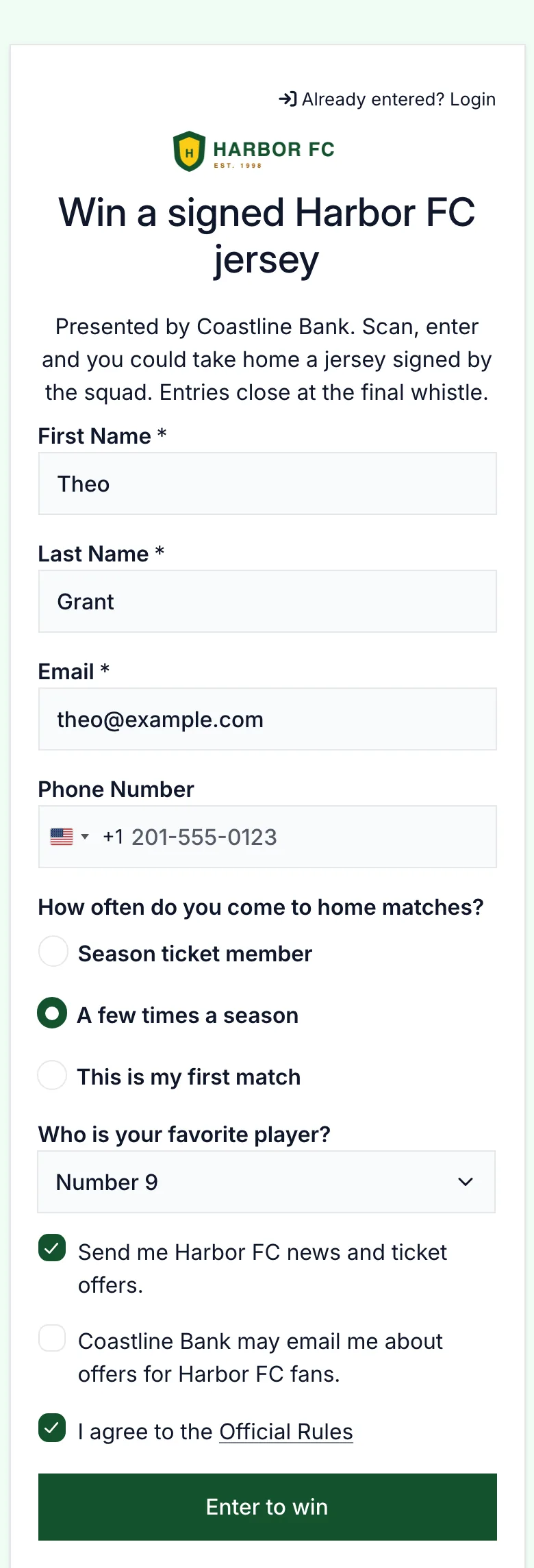
Save longer questions for a post-match survey.
Step 4: Keep the Club and Sponsor Opt-Ins Separate
Entering isn’t permission to market. Use an Email Consent field for club news, so only fans who check it are sent to your email platform. Use a separate, clearly named Checkbox for the sponsor, and share only the fans who checked it if your rules say you will. See email consent.
Step 5: Give Every Placement Its Own QR Code
Open Share → Tracking links and add a link for each placement: Big screen, Concourse signs and Match-day email. Download each QR code from the same panel and send it to whoever builds the graphics.
Keep the sign copy short enough to read from the stands: “Scan to win a signed jersey. Presented by Coastline Bank. Entries close at the final whistle.”
Every entry records where it came from, alongside the fan’s answers and opt-ins:
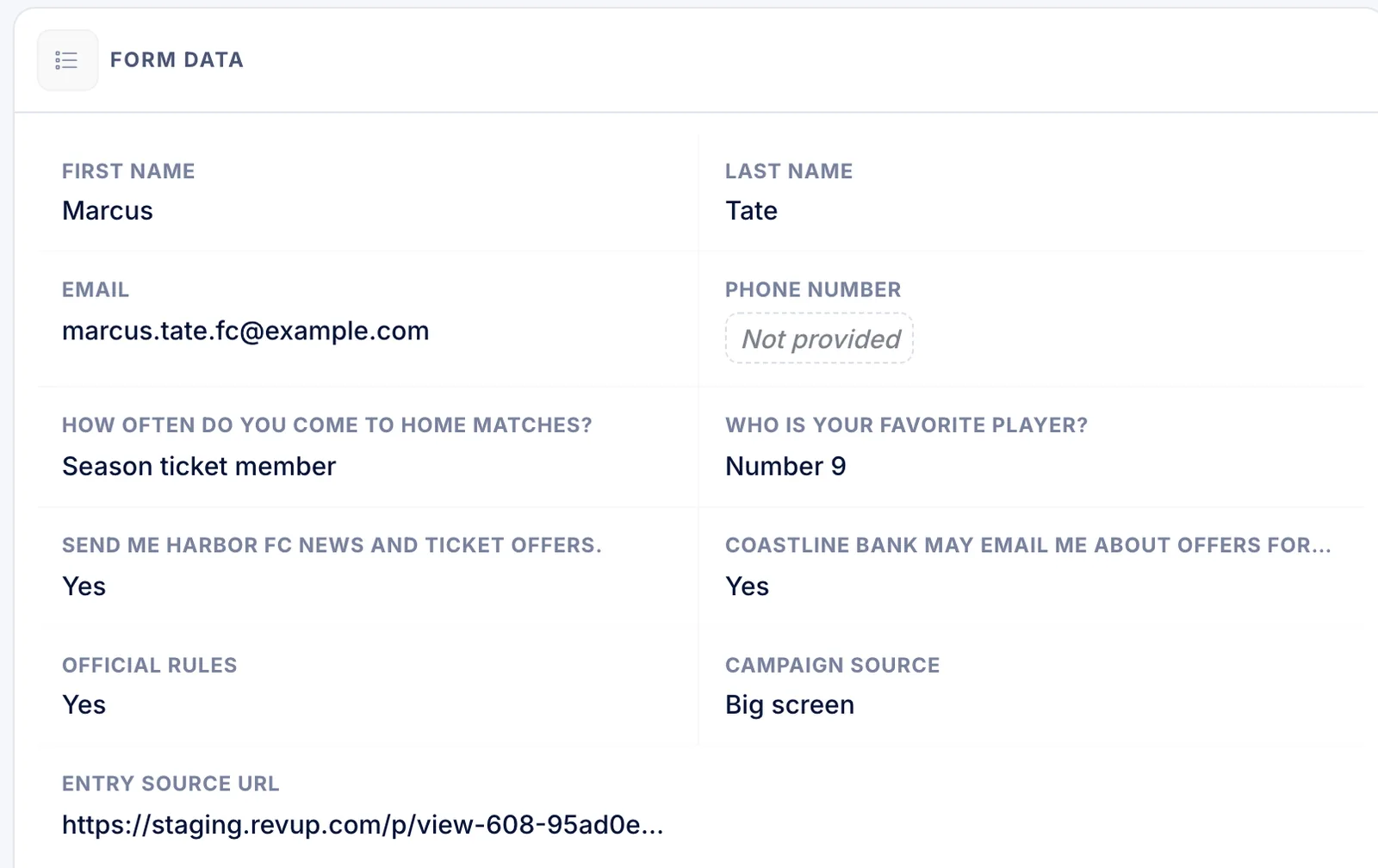
See tracking links.
Step 6: Plan for Stadium Wi-Fi
New promotions start on Strict security, which allows one entry per IP address. Thousands of fans can share a few IP addresses on stadium Wi-Fi or a mobile network, and even Low allows only five entries per IP. Choose Custom, turn off Enable IP Address Limits or set a maximum sized for the crowd, and keep CAPTCHA on. Each email address can still enter only once. See security levels.
Step 7: Close Entries at the Final Whistle
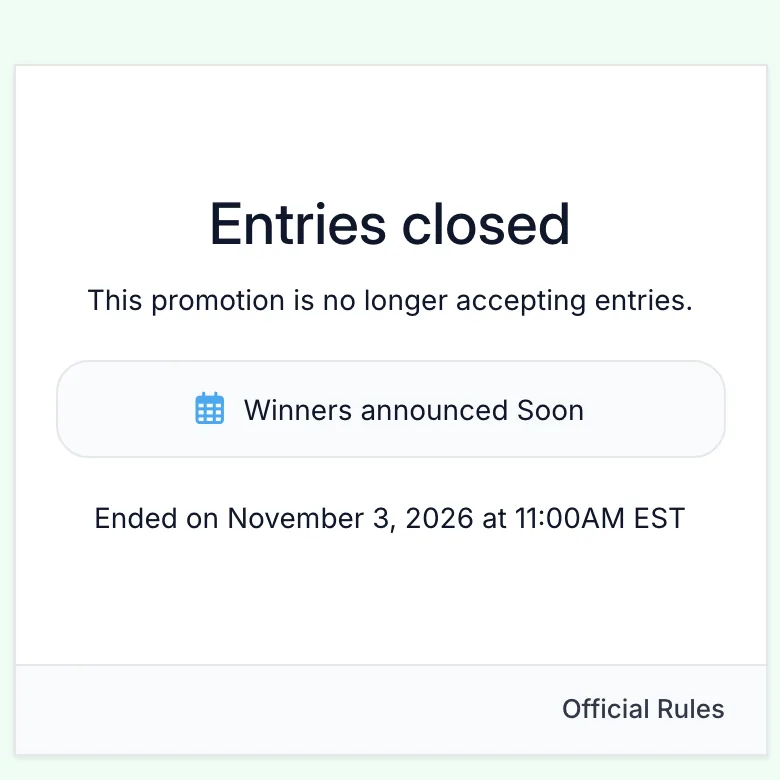
Set the end time in Settings. When it passes, the entry page stops accepting entries and tells fans when it ended:
Step 8: Draw a Winner and Hand Off the Prize
Open Winners → Draw Winners and draw one winner with an alternate. Send the claim form from the winner’s row and ask how they’d like to collect the jersey, such as at fan services on the next match day. The winner has three days to respond, and you can extend the deadline or promote the alternate. Once the jersey is handed over, select Mark fulfilled. Our ticket giveaway guide walks through each winner screen.
Step 9: Send the Sponsor Report
Pull the numbers from Reporting → Campaign Tracking, which lists participants for each tracking link, and from Participants → Export, which includes each fan’s answers and a Campaign Name column. See exporting participants.
Sponsor report fields
- Total entries and the entry window
- Entries by placement: big screen, concourse, email
- How often entrants come to matches
- Fans who opted in to the sponsor, as a total
- Fans who opted in to club news, as a total
- Winner drawn and prize fulfilled, without personal details
- A note that the report covers participation, not ticket sales or revenue
What This Setup Doesn’t Do
- No ticket scanning or attendance data. Revup doesn’t connect to ticketing, so it can’t confirm who was in the stadium.
- No revenue attribution. Reports cover visits and entries from your links, not ticket or merchandise sales.
- No predictions or paid entry. This is a free giveaway, not a prediction game or a betting product.
For more game-day ideas, see our sports and entertainment promotion ideas, or how Revup works for sports teams.