

A radio station ticket giveaway works best when the hard part isn’t the entry. It’s everything after: picking a winner fairly, reaching them before the show, lining up a backup when someone doesn’t answer, and getting the tickets into the right hands. This guide covers the whole workflow, from the code word your host reads on air to the moment the prize is marked fulfilled.
The example is Riverline 98.7, an example station giving away two tickets to see The Lanterns at Riverside Hall. Listeners hear a code word on the morning show and enter it on the station’s website.
Write the rules before you read the code word
US broadcasters that run their own contests must disclose the material terms, such as how to enter, eligibility, deadlines, prizes and how winners are chosen, and run the contest as announced. Publish official rules that cover how listeners get the code word, the entry period, the drawing date and the claim deadline, and have your counsel review them.
The FCC’s contest rule is 47 CFR 73.1216. Revup can generate official rules for you to review and edit.
What You’ll Build
The Riverline 98.7 ticket giveaway
Hear it
The morning show reads today’s code word and the station’s giveaway URL.
Enter
Listeners enter on the station website with their name, email and the code word.
Draw
When entries close, the promotions team draws one winner and backup alternates.
Claim
The winner gets a claim form with a three-day deadline. If they don’t respond, an alternate takes their place.
Hand off
The team arranges the tickets with the winner and marks the prize fulfilled.
Step 1: Create the Giveaway
In the dashboard, select Create Promotion, choose Sweepstakes / Giveaway, then Start from scratch. Give it a title listeners recognize from the air, such as “Win tickets to The Lanterns,” and add a one-line description that tells them where the code word comes from.
Add the prize with a clear name and approximate value, and set the entry period. Riverline’s giveaway runs for two weeks and closes a week before the concert, which leaves time for a draw, a claim deadline and a backup winner.
Step 2: Set Up the Entry Form
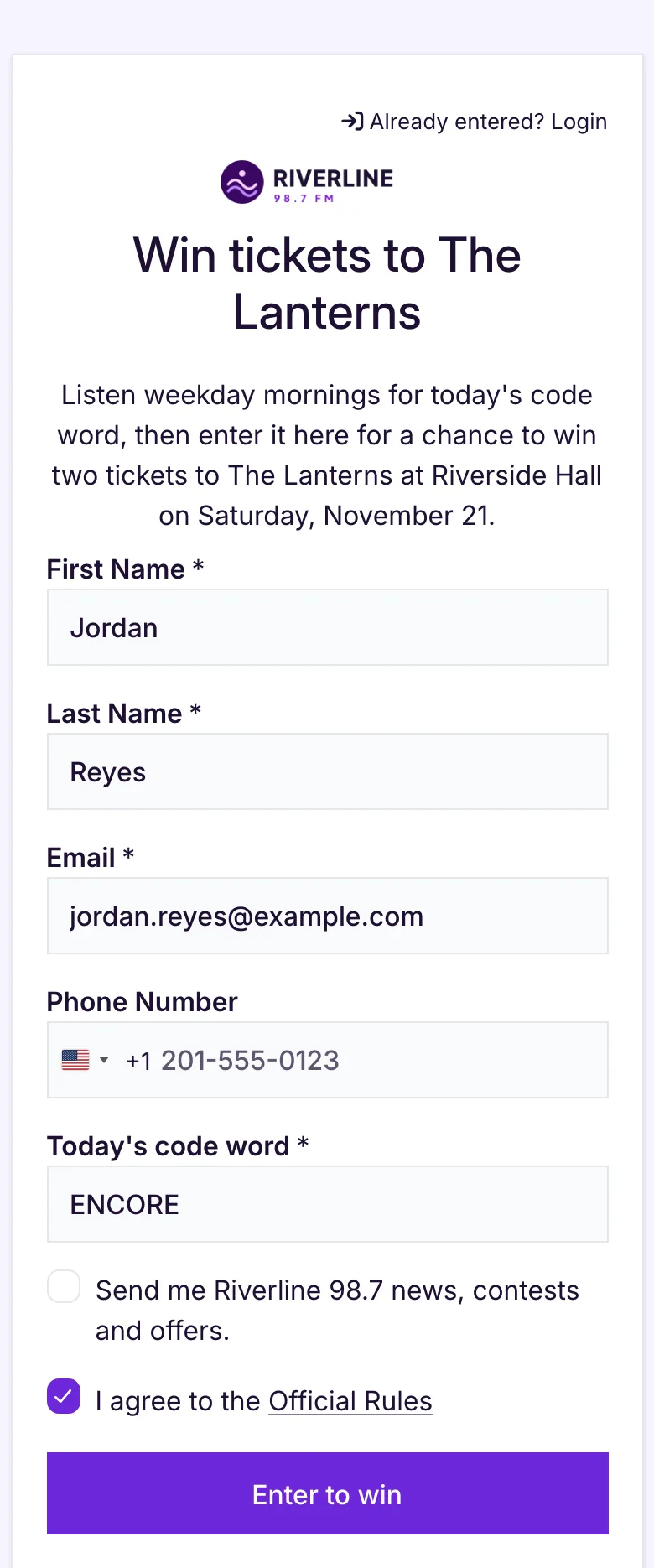
Keep the form short enough to finish during a song. Riverline uses these fields:
| Field | Type | Required? | Why |
|---|---|---|---|
| First and last name | Name | Yes | Matches the name on the will-call list or pickup sheet |
| Yes | Where the claim form goes; one entry per email | ||
| Phone number | Phone | No | A second way to reach a winner close to the show |
| Today’s code word | Passcodes | Yes | Proves the listener heard the code on air |
| Send me Riverline 98.7 news, contests and offers. | Email Consent | No | Marketing permission, separate from entering |
| I agree to the Official Rules | Built in | Yes | Every giveaway includes it |
Set up the code word
Open the Passcodes field, paste the code word, and select Add codes. Turn on Allow passcodes to be used more than once so every listener can enter the same word. Codes aren’t case-sensitive, so “encore” and “ENCORE” both work.
A wrong code shows an error and creates no entry. The default message is “Enter a valid Passcode.” Change it to something listeners understand, like “That’s not today’s code word. Listen for it on the morning show.” If you read a new word each day, add it as another code. Earlier codes stay valid, so plan your rules around that. See passcode settings.
One entry per listener
Each email address can enter once. When a listener comes back with the same email, Revup asks them to confirm it with a code instead of creating a second entry. To reward listeners who come back, add a bonus action that awards an extra entry once a day.
Step 3: Track the Website and the Air Separately
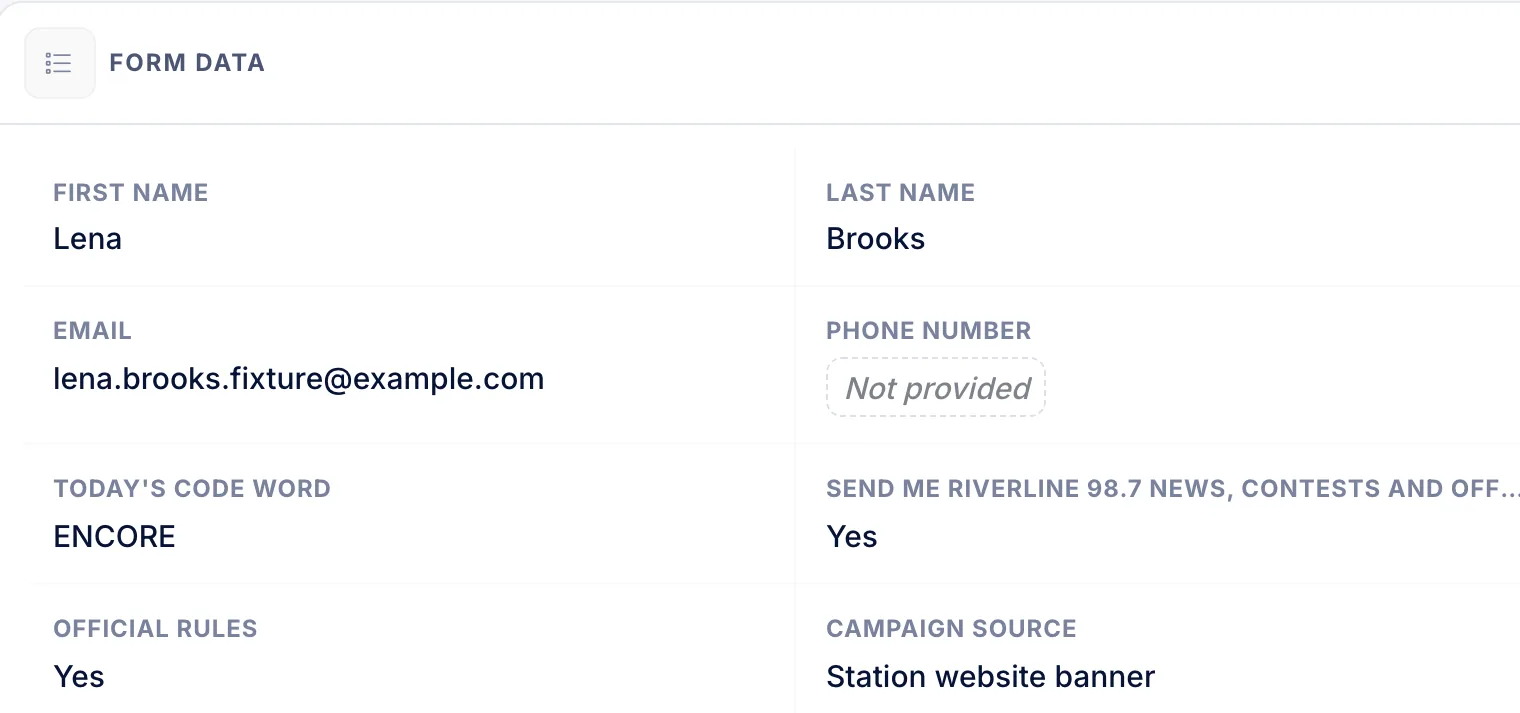
Open Share → Tracking links and create one link per placement. Riverline uses two: Station website banner and On-air mention. Each participant’s profile shows the campaign source they came from, and the participant export includes it as a column. Reporting → Analytics → Campaign Tracking shows visits and participants for each link.
Revup’s short links aren’t meant to be read aloud. For the on-air link, give your hosts a simple address on your own website, such as a /win page, and point it at the On-air mention tracking link. See tracking links.
Step 4: Check Security for Busy Networks
New promotions start on Strict security, which allows one entry per IP address. Listeners entering from the same office, campus or mobile network can share an IP address, and entries over the limit are marked invalid. Choose Medium (three per IP address) or Low (five per IP address) if many listeners may share a network, and keep CAPTCHA on the form. One entry per email still applies. See security levels.
Step 5: Prepare the Claim Form
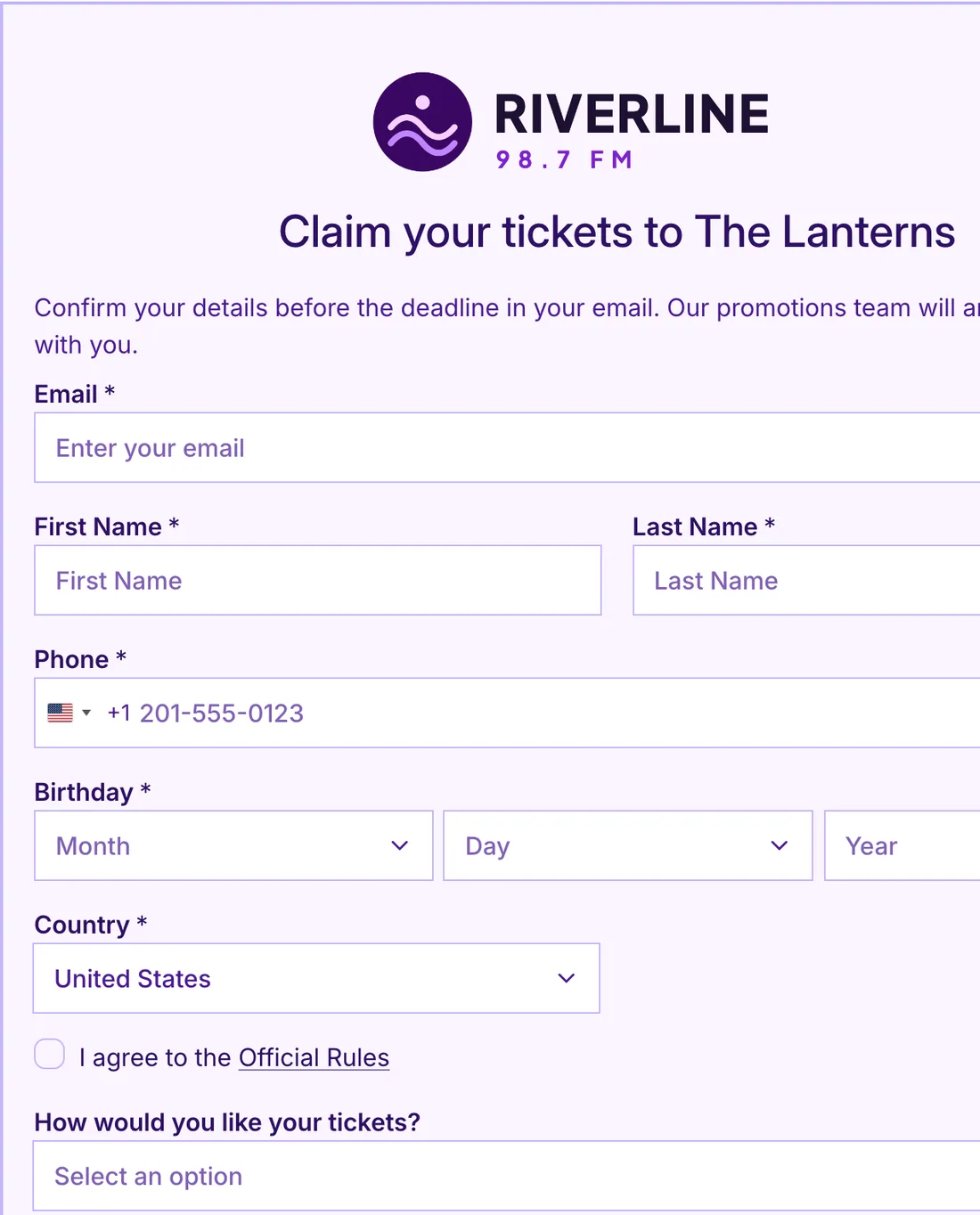
Before you draw, open Winners → Prepare Claim Form. The claim form is separate from the entry form and collects what you need to hand over the prize. It starts with name, email, phone, birthday and a full mailing address.
Tickets don’t need a mailing address, so Riverline removes the address fields and adds a dropdown: “How would you like your tickets?” with Pick up at the Riverline studio and Will call at Riverside Hall. Country stays on the form because the built-in US tax and affidavit documents are set to automatic for prizes over $2,000. See claim forms.
Step 6: Draw a Winner and Alternates
When entries close, open Winners → Draw Winners. Set Number of Winners to 1 and Alternates per Winner to the number of backups you want, such as 2. Leave Allow duplicate winners off. Draws are weighted by each participant’s entries, and every draw is listed in Draw History.
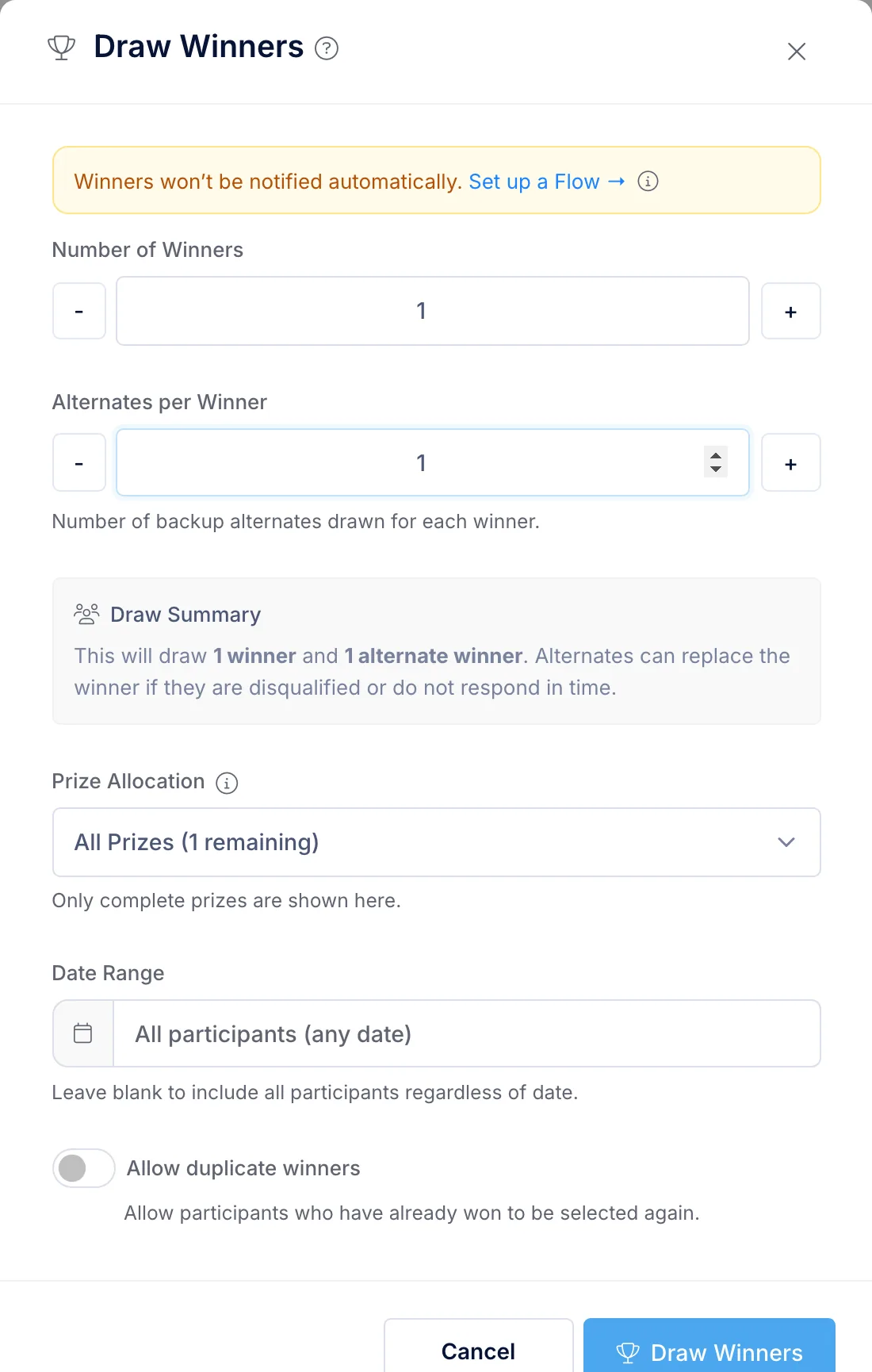
Revup doesn’t draw on a schedule. Someone on your promotions team runs the draw at the time your rules give.
Step 7: Send the Claim Form
In the winner’s row, open the Prize Claim menu and choose Send claim form. You can edit the subject and message before you send. The email includes the claim link and asks the winner to respond within three days.
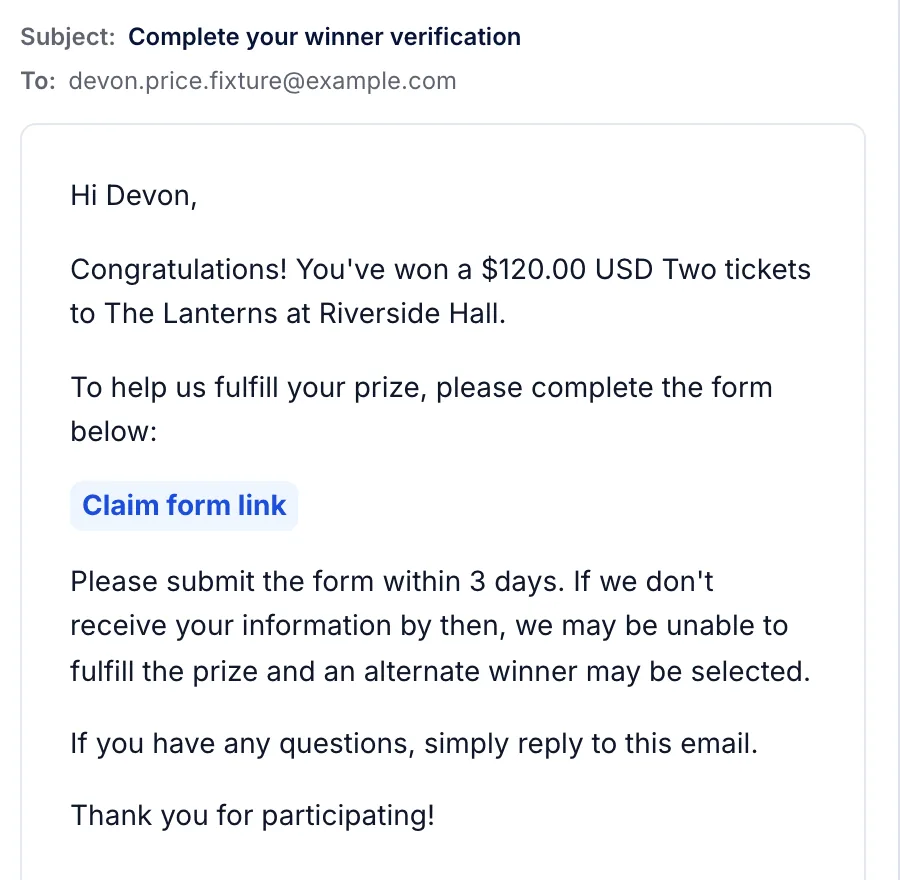
The Prize Claim column then tracks the claim: Awaiting response, Ready to fulfill once the winner submits, or No response if the deadline passes. Use Extend deadline to add three more days.
Sending is manual by default. To send claim forms and reminders automatically, set up a Flow: the Winner Notification starter runs when a winner is drawn, and the Prize Claim Reminder starter reminds winners who haven’t completed their form. See Flows.
Step 8: Move to an Alternate if the Winner Goes Quiet
If the winner doesn’t respond in time, or you disqualify them, open their row’s winner menu and choose Mark No Response. Expand Show alternates, choose Promote to Winner on the next alternate, then send that person a claim form. Promoting an alternate doesn’t notify them, so send the claim form yourself or let a Flow handle it.

See winners and alternates for every option.
Step 9: Hand Off the Tickets
Revup doesn’t transfer or deliver tickets. Once the claim is submitted, your team uses the winner’s answers to arrange pickup or add them to will call, then selects Mark fulfilled to record when the prize was handled.
Prize owner and deadline checklist
- Name one person who owns the prize from draw to handoff
- Confirm with the venue or promoter how and when tickets can be released
- Draw with enough time for a three-day claim and at least one alternate before the show
- Send the claim form the same day you draw
- Note the claim deadline and the backup plan for an alternate
- Check the winner against your rules for recent winners before confirming
- Record the pickup or will-call details from the claim form
- Mark the prize fulfilled after the tickets are handed over
Follow Up: Ask Listeners What They Want
A giveaway tells you who is listening. A short survey tells you what they want more of. After the concert, ask entrants three quick questions about shows, music and events, and send it only to listeners who opted in to hear from you. For broader campaign ideas, see our media and publisher contest ideas.
What This Setup Doesn’t Do
- No scheduled draws. Your team runs each draw at the time your rules give.
- No ticket transfers. Tickets are handed off by your team, at the studio or through will call.
- No limits across promotions. Revup prevents duplicate winners within one giveaway, but it doesn’t enforce win limits across promotions or time periods. Check recent winners against your rules.
- No call-in or listening data. Revup doesn’t screen phone callers or measure who is listening. Entries come from your online form.
Launch Checklist
Before the first code word goes on air
- Official rules published and reviewed, including the drawing date and claim deadline
- Passcodes field required, with the code word added and reuse turned on
- Custom error message for a wrong code word
- Email Consent optional and unchecked
- Tracking links for the website and on-air placements
- A simple on-air address that points to the On-air mention link
- Security level checked for shared networks, with CAPTCHA on
- Claim form edited for tickets
- A Flow for winner emails and claim reminders, or a person assigned to send them
- A prize owner and handoff plan agreed with the venue
Ready to run your own? Start a free trial, or see how Revup works for radio stations.