

“Which one is right for me?” is the question that stops a lot of skincare sales. A product recommendation quiz answers it in about a minute: a shopper picks a few answers, sees the set that fits, and taps through to buy it. You learn what each shopper is looking for along the way.
This guide builds one complete example: Graced, an example skincare brand, with three sets to recommend. You’ll set up the questions, decide how each answer counts, write the results, test the scoring and send each shopper’s result to your email platform.
What You’ll Build
The Graced skin quiz
Ask
Three quick questions about skin type, main goal and favorite texture.
Score
Each answer adds points to the sets it fits.
Match
The set with the most points is the shopper’s result.
Shop
The result shows the set, a short description and a button to buy it.
Follow up
Shoppers who share an email get follow-up based on their result.
Step 1: Choose the Right Kind of Quiz
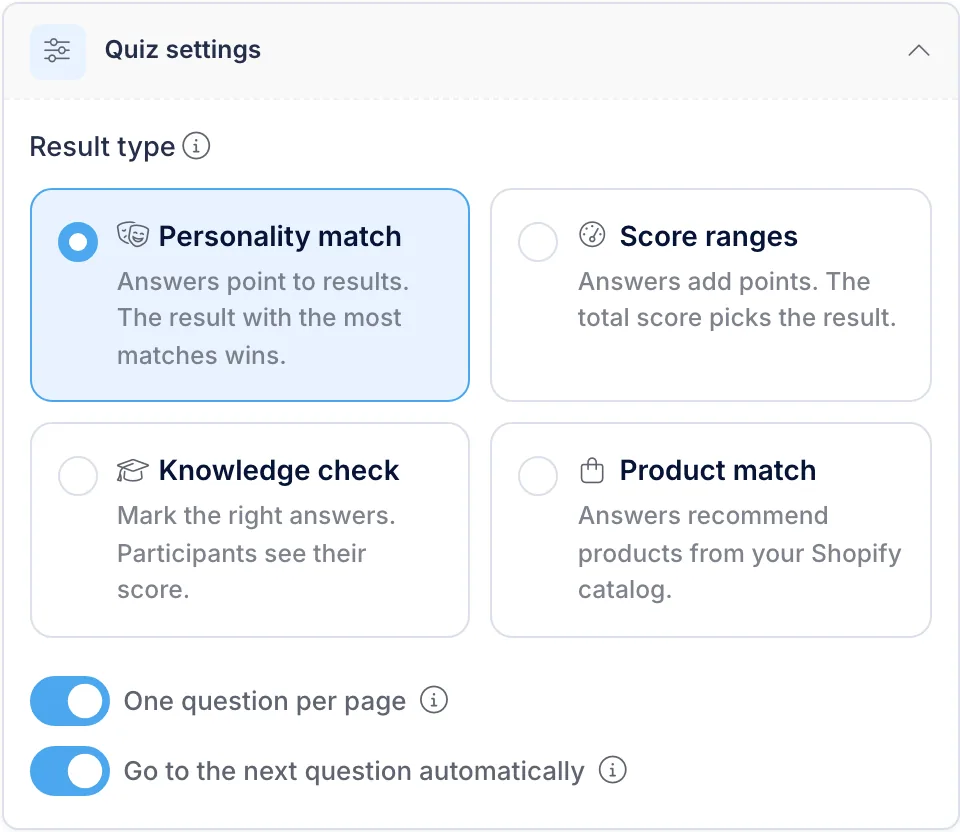
Revup quizzes use one of four result types. For a skincare routine finder, choose Personality match: answers point to named results, and the result with the most points wins.
| Result type | How it picks a result | Good for |
|---|---|---|
| Personality match | Answers point to named results | Routine finders, “which set is for you?” |
| Score ranges | Answer points add up to a percentage band | Readiness or fit scores |
| Knowledge check | Graded answers with a score | Ingredient trivia, training |
| Product match | Answers recommend products from your Shopify catalog | Stores with many individual products |
Personality match works on any website. If you sell on Shopify and want the quiz to pick individual products from your catalog, use Product match instead. The steps are similar.
In the dashboard, select Create Promotion, choose Quizzes and select Start from scratch. On the Form tab, open Quiz settings at the top of the Questions card and choose Personality match under Result type. Give the quiz a title shoppers will understand, such as “Find your Graced match.”
Prefer a head start? Select Create with RevAssist instead, pick Personality match when it asks what your quiz should tell people, and describe your products. RevAssist drafts the questions, results and scoring for you to edit.
Step 2: Write the Results First
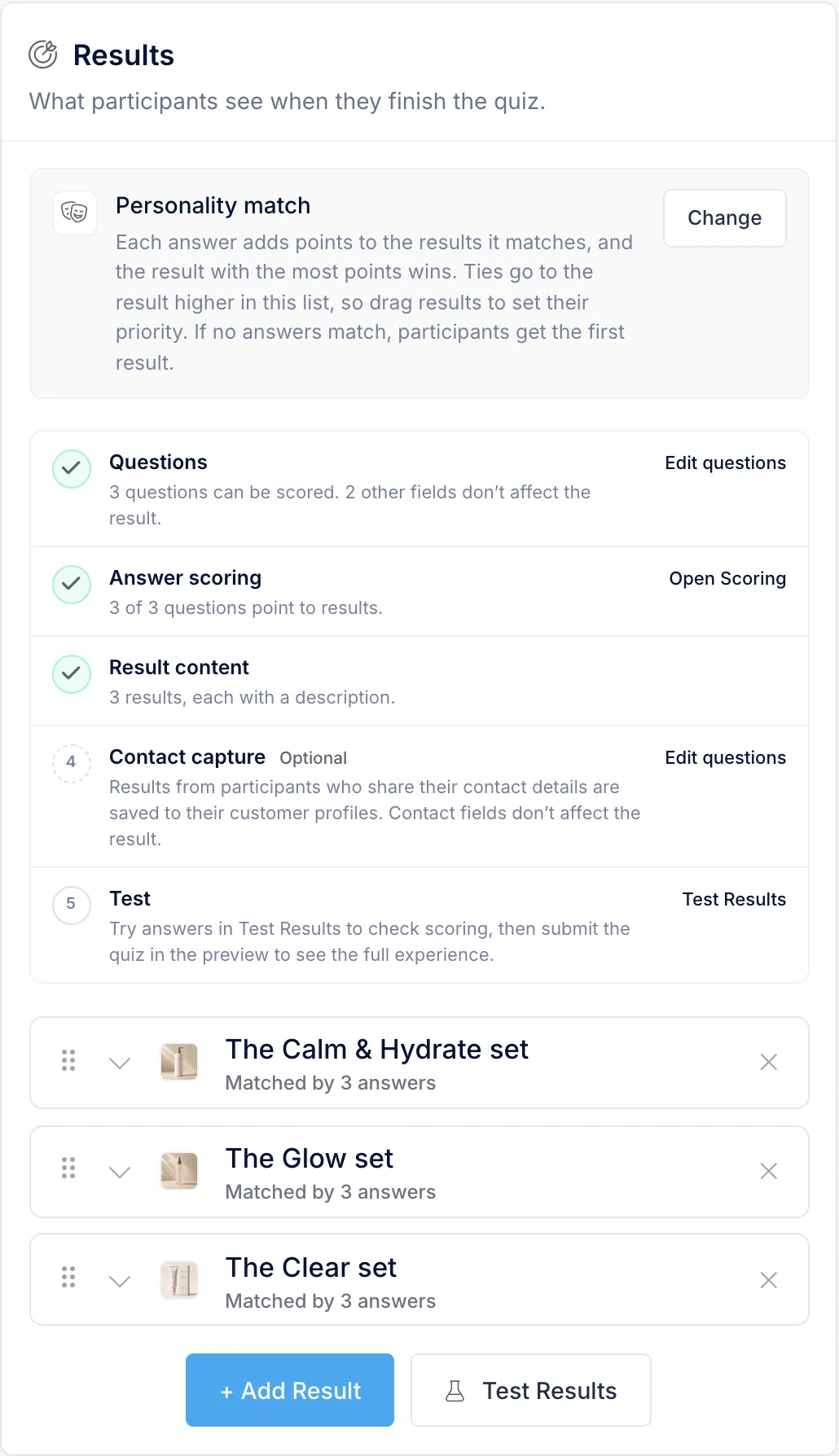
Open the Post-Entry tab and find the Results card. Each result has a Result Title, an image, a Description, and a Button Text and Button Link. The button only shows when both are filled in, and the link can go to any page, such as a collection on your store.
| Result | Description | Button |
|---|---|---|
| The Calm & Hydrate set | For skin that feels tight or looks red. A gentle cleanser, a rich cream and a soothing mask. | Shop the Calm & Hydrate set |
| The Glow set | For skin that looks dull or tired. A vitamin C serum, a light lotion and a weekly polish. | Shop the Glow set |
| The Clear set | For skin that gets shiny or breaks out. A gel cleanser, a light gel and a spot treatment. | Shop the Clear set |
Order matters. If two results end up with the same points, the shopper gets the one higher in the list, and if no answers match at all, they get the first result. Drag your most broadly useful set to the top. For Graced, that’s the Calm & Hydrate set.
Keep descriptions about preferences, not treatment. A quiz matches shoppers to products based on what they tell you. It doesn’t diagnose skin conditions.
Step 3: Ask Three Questions
Add three Multiple Choice questions. Short answers work best on a phone, and quizzes show one question per page by default.
- How does your skin usually feel? Dry or tight, Shiny in places, Comfortable.
- What’s your main goal? Calm redness, Add glow, Clear breakouts.
- Which texture do you like? Rich cream, Light serum, Gel.
Quizzes show one question per page and go to the next question automatically, so a single tap moves shoppers forward. Three or four questions is plenty. Every extra question is another chance to leave.
Step 4: Decide How Each Answer Counts
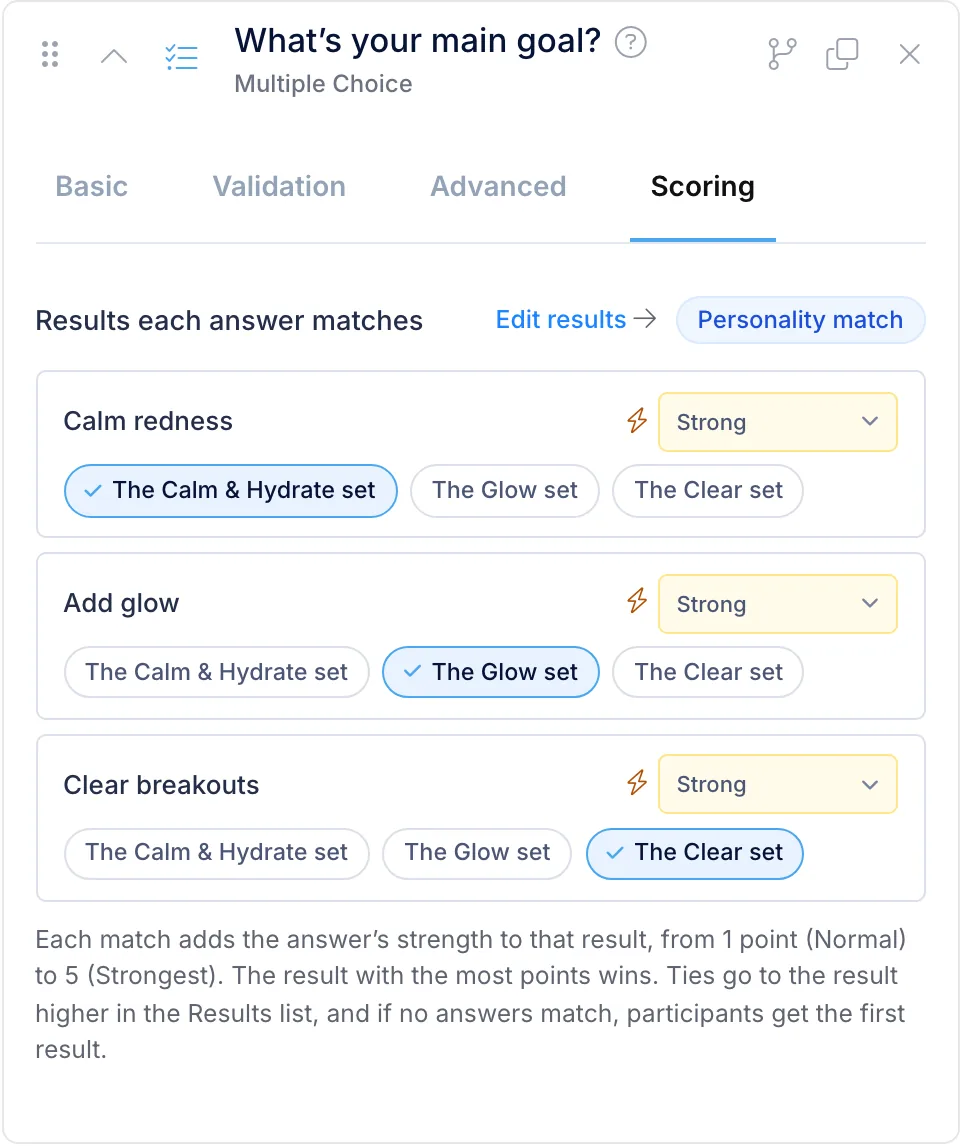
Open each question’s Scoring tab. For every answer, check the results it fits, and choose its strength, from Normal (1 point) to Strongest (5 points). The main goal is the most telling answer, so Graced makes those answers Strong (2 points):
| Answer | Counts toward | Strength |
|---|---|---|
| Dry or tight | Calm & Hydrate | Normal · 1 pt |
| Shiny in places | Clear | Normal · 1 pt |
| Comfortable | Glow | Normal · 1 pt |
| Calm redness | Calm & Hydrate | Strong · 2 pts |
| Add glow | Glow | Strong · 2 pts |
| Clear breakouts | Clear | Strong · 2 pts |
| Rich cream | Calm & Hydrate | Normal · 1 pt |
| Light serum | Glow | Normal · 1 pt |
| Gel | Clear | Normal · 1 pt |
A shopper who answers Dry or tight, Add glow and Rich cream gets 2 points for Calm & Hydrate and 2 points for Glow. That’s a tie, so they see the Calm & Hydrate set, because it’s first in the Results list. If you’d rather the goal always decide, make the goal answers Very strong (3 points) instead.
Step 5: Test the Scoring
On the Results card, select Test Results. Pick answers in the drawer and it shows which result a shopper would get. Nothing is saved. Try the tie above, and an answer set for each result, before you share the quiz.
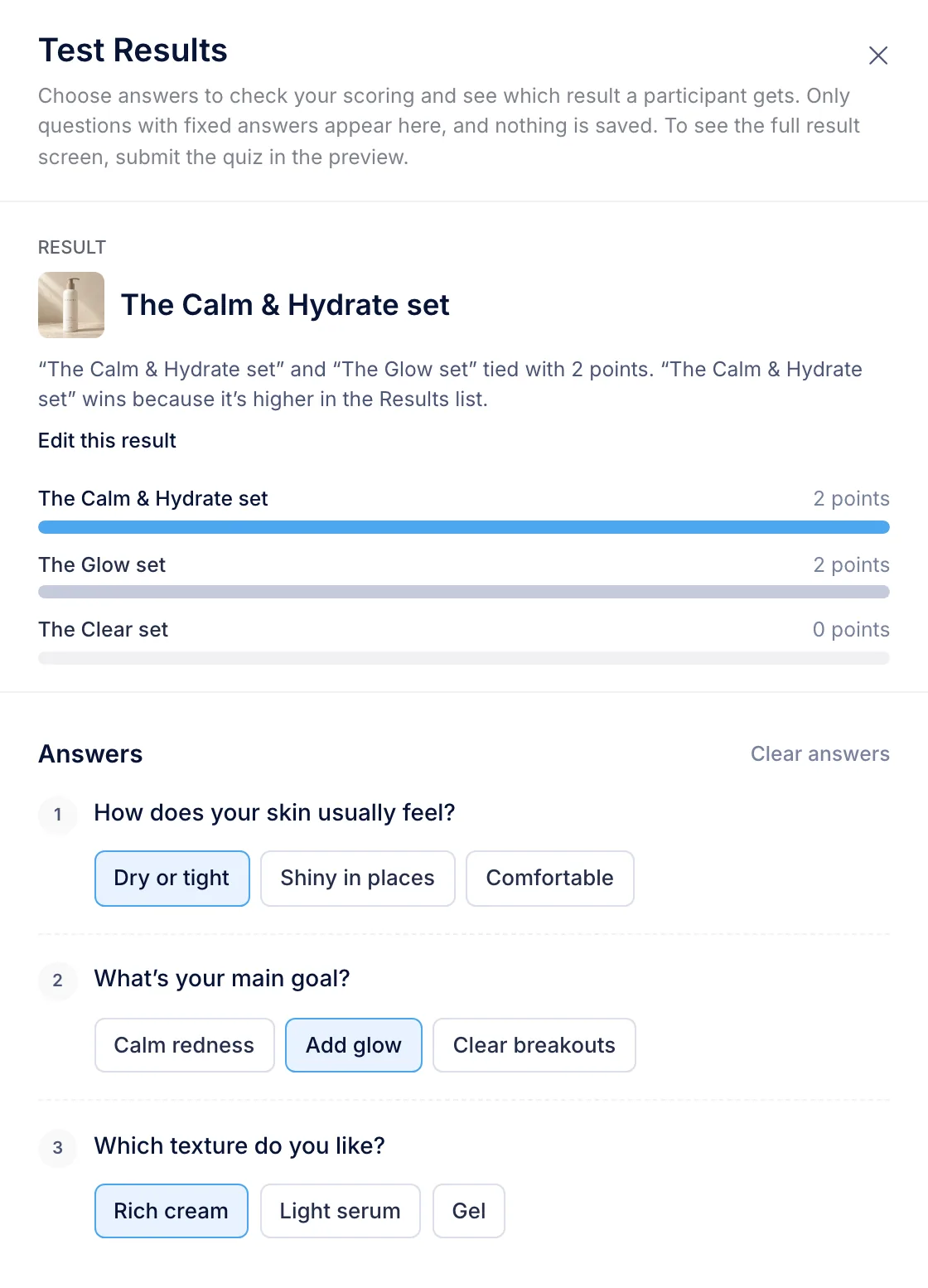
The drawer checks scoring only. To see the full result screen, with the image and button, submit the quiz in the preview.
Step 6: Ask for an Email, Optionally
Quizzes are anonymous until you add a contact question. Add an Email question with a line such as “Want your routine and tips by email?” and leave it optional. Shoppers answer it before they see their result. Add a separate Email Consent field for marketing permission, unchecked by default.
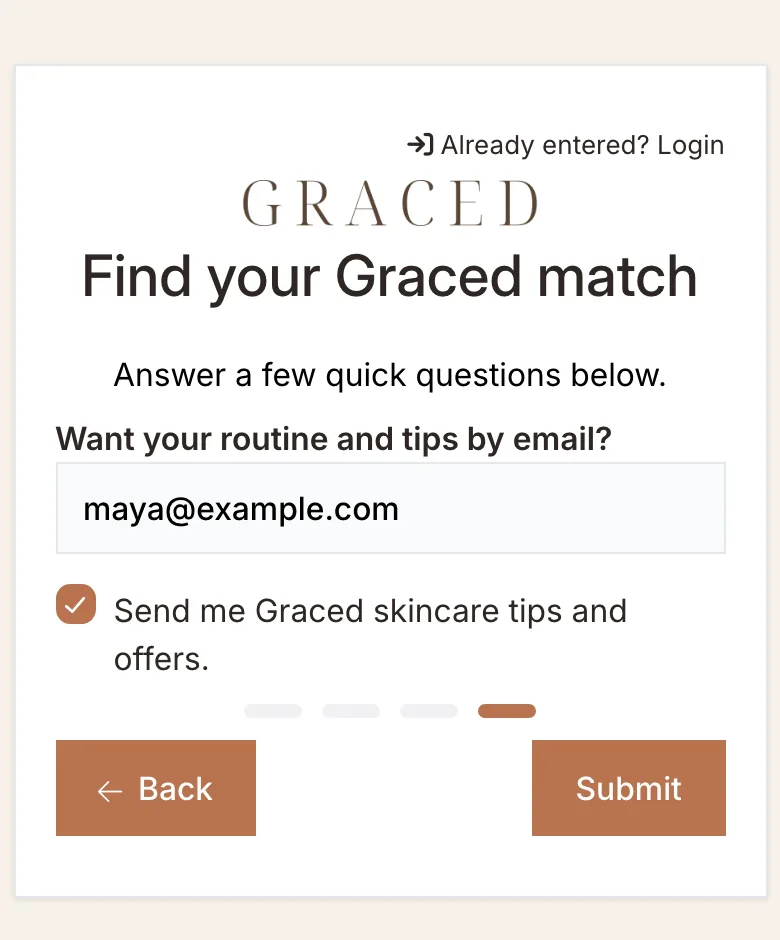
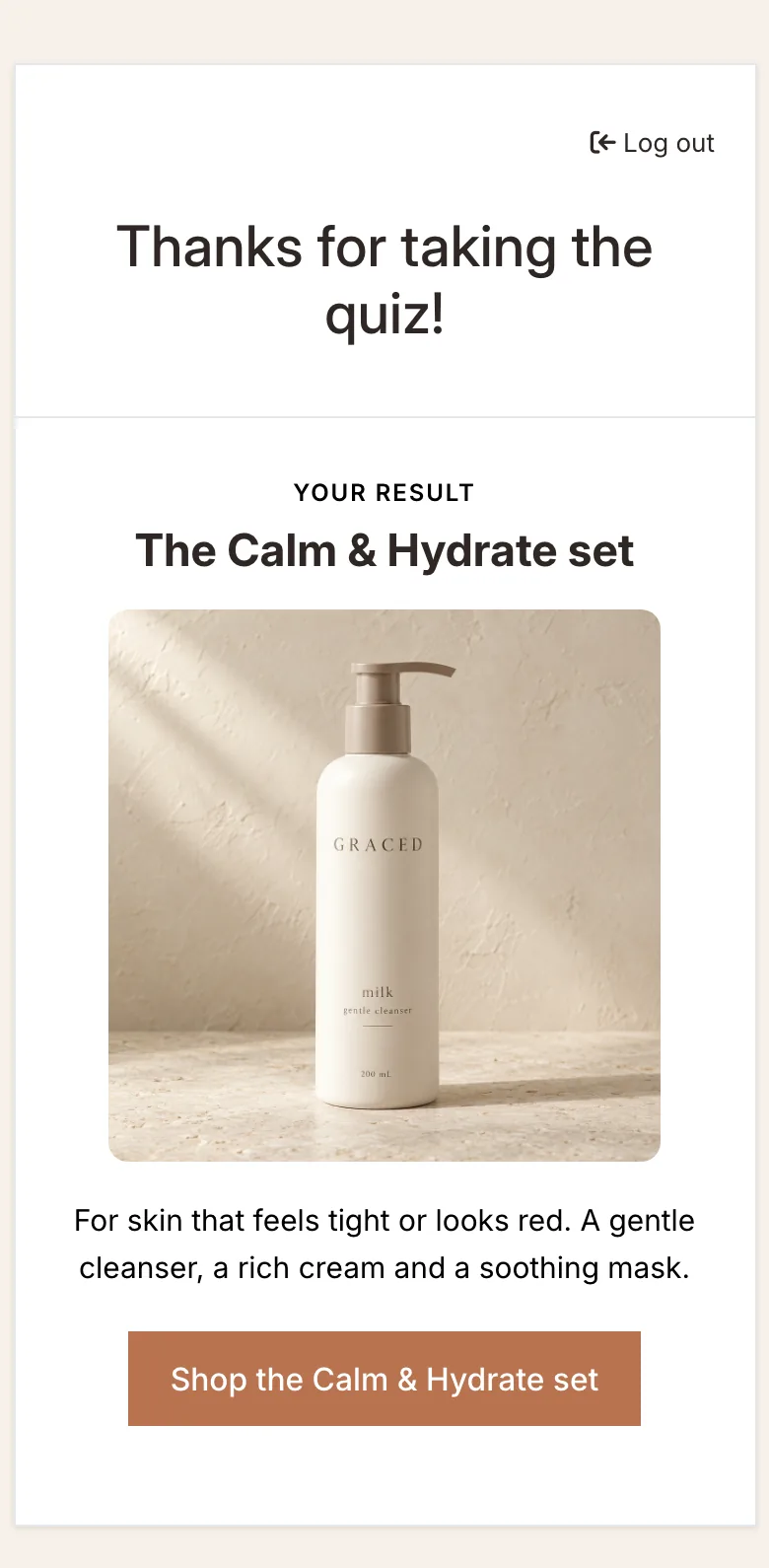
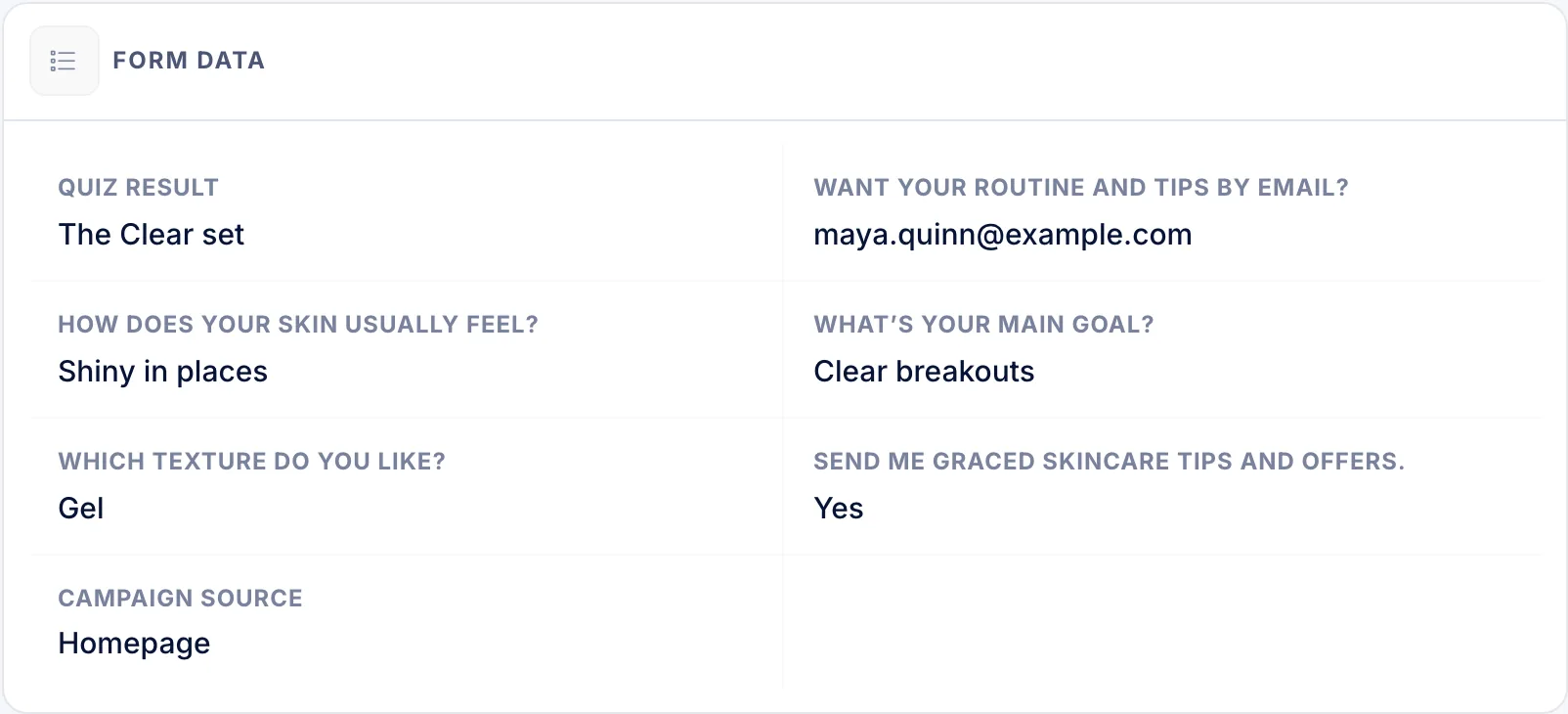
Shoppers who skip the email still get their result. Shoppers who share it have their result saved with their entry and customer profile, so you can see who matched which set:
Step 7: Send the Result to Your Email Platform
Add Klaviyo, Omnisend, Mailchimp, HubSpot or another supported platform on the quiz’s Integrations tab. In its settings, open System Fields and map Quiz Result to a profile field, or create one, such as skin_quiz_result. Each shopper who shares an email and opts in arrives with their result, so you can send a Calm & Hydrate welcome flow to Calm & Hydrate matches.
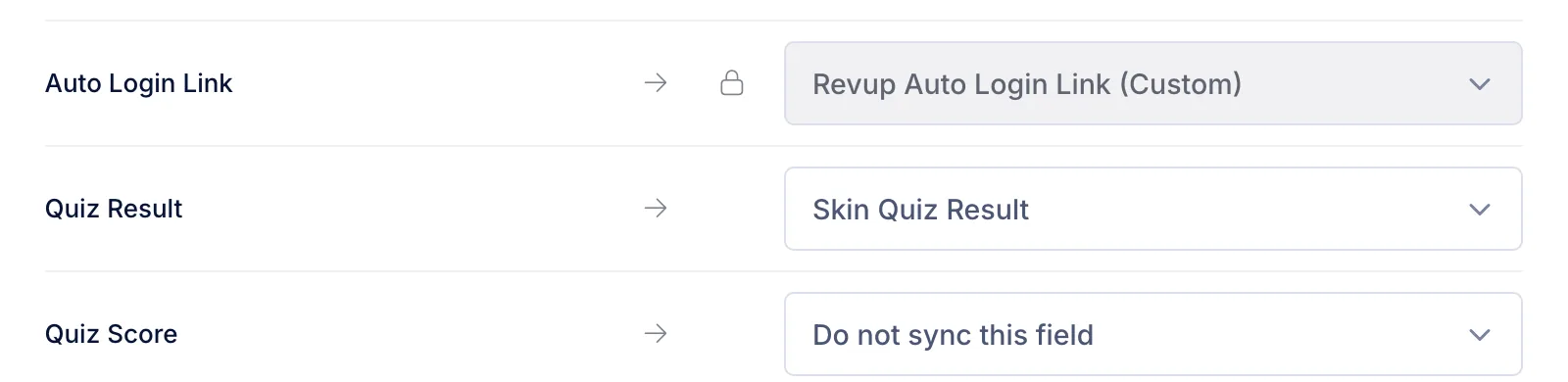
If the quiz has an Email Consent field, only shoppers who check it are synced to your email platform. See email consent.
Step 8: Put the Quiz Where Shoppers Are Deciding
- Your homepage and collection pages. Link to the quiz with a line like “Not sure where to start? Take the 60-second quiz.”
- Your welcome email. New subscribers who haven’t bought yet are the people most likely to ask which product is for them.
- Packaging and samples. Print a QR code on sample cards so shoppers can find their full routine.
Give each placement its own tracking link from Share → Tracking links, and see which one brings in the most quiz takers. See tracking links.
Launch Checklist
Before you share the quiz
- Three results, each with a title, image, description, button text and link
- Your most broadly useful result at the top of the Results list
- Every answer pointing to at least one result
- Test Results checked for a tie and for each result
- The full result screen checked in the preview
- Optional email question and a separate Email Consent field
- Quiz Result mapped to a property in your email platform
- Result copy about preferences, not treatment
What This Setup Doesn’t Do
- No skin analysis. The quiz uses the answers shoppers choose. It doesn’t analyze photos or give medical advice.
- No purchase tracking. Revup shows quiz takers and results, not which result led to a sale. Measure that in your store or email platform.
- No automatic emails from the quiz. Your email platform sends the follow-up, using the result you map to it.
For more ideas, see how Revup works for beauty and skincare brands, our beauty brand giveaway ideas, or build your own with Quizzes.